IT Essentials ClassDelta-Schoolcraft CTELearn
Course

Device Configuration and Management

Device Configuration
& Management

Read the explanation. Follow an example. Then try it in the lesson.

Available chapters: lessons 1.1–1.7, 2.1–2.5 and 3.1–3.3. Additional course chapters will appear as they are added.

Lesson 1.1

Computer components and their functions

A computer is a set of parts doing different jobs together. Learn to recognize a part, explain its job, and connect that job to something a user does. Model numbers and specification labels provide evidence; appearance alone does not prove compatibility.

This chapter supports identification and reasoning. Physical inspection needs your instructor’s approval and the exact computer’s service manual. Do not open a power supply, remove a fitted CPU cooler, or open a working storage drive for this reading.

01

The board connects; the processor works

The motherboard provides the connections between major components. A Central Processing Unit (CPU) executes program instructions. Seeing both parts in one photograph does not make them the same part: a large circuit board may contain a socket for a separate processor.

A PCIe Slot provides an expansion connection, such as the connection for an add-in graphics card. Fit is only one check. The system’s documentation must also support the device, its power needs, and its other requirements.

A Heatsink transfers heat away from a hot component. A cooler may hide the CPU beneath it; identifying the visible cooler is different from seeing the processor itself. Leave installed cooling equipment in place unless an approved service task specifically requires removal.

Pause and explain

Two motherboards both have a PCIe slot. Does that prove that the same graphics card is suitable for both computers?

Compare your reasoning

No. The shared connection is a starting point. Check the exact systems’ support, available space, power supply and connections before recommending a card.

Technical references for this section

02

Working on a file is different from saving it

RAM is working memory for active programs and data. A Storage Device retains saved data when power is off. The two capacities answer different questions: how much active workspace is available, and how much saved material can be kept.

A Hard Disk Drive (HDD) uses magnetic storage and moving mechanical parts. A Solid-State Drive (SSD) stores data electronically without that moving drive mechanism. Both are storage devices. “SSD” does not, by itself, identify the connector, capacity, condition or compatibility of a particular drive.

  1. Open

    Saved program and file data are read from storage.

  2. Work

    The CPU works with instructions and data in active memory.

  3. Save

    The application writes the saved result to storage.

Pause and explain

A computer has plenty of free drive space but struggles with many active apps. Why is free space not enough evidence to rule out a memory problem?

Compare your reasoning

Drive space and active memory describe different resources. Inspect actual memory demand and other evidence rather than treating free storage as spare RAM.

Technical references for this section

03

A GPU is not the whole graphics card

A Graphics Processing Unit (GPU) is a processor used for graphics and other parallel workloads. A Graphics Card is an assembly that can include a GPU, memory, cooling and connectors. The GPU itself may be hidden by the cooler in a photograph of the card.

Some systems use integrated graphics instead of a separate add-in card. Accelerated Processing Unit (APU) is AMD’s term for a design combining CPU and GPU capabilities. Therefore, “no graphics card is visible” does not mean that a computer has no graphics-processing capability.

CUDA and ROCm belong to the software side of supported GPU computing. They are not additional physical components to find on a motherboard. A program needs a supported hardware/software combination; a GPU’s appearance does not establish that support.

Pause and explain

Why should an inventory record distinguish “GPU model” from “graphics card model”?

Compare your reasoning

One identifies the processor; the other identifies the complete assembly. Different cards can use the same GPU while differing in other hardware and requirements.

Technical references for this section

04

Keep hardware, firmware and architecture separate

BIOS is firmware associated with starting and configuring a computer; modern systems commonly use UEFI firmware. It is not the Windows desktop or an application. Observe only: changing firmware is a separate, authorized task.

Reduced Instruction Set Computing (RISC) describes an approach to processor instruction-set design. It is not a motherboard socket or a guarantee that one computer is faster than another. Identify the exact architecture, processor and workload rather than deciding from a label alone.

Pause and explain

You cannot read a RAM module’s label in a photo. What belongs in your inventory?

Compare your reasoning

Record what is actually visible and mark the unreadable specification unknown. Find a reliable model record or ask for a better approved photo; do not guess a part number from its shape.

Technical references for this section

05

RAM: capacity is not speed

RAM capacity, measured in GB, describes how much working data can fit. DDR generation, module form factor and the system’s supported capacity must match. Ordinary system memory uses DRAM, which needs refresh while powered; small processor caches commonly use SRAM. Both are volatile, unlike a saved file on a drive.

A DDR transfer rate is commonly stated in MT/s, not interchangeable with clock MHz. CAS latency (CL) counts clock cycles, so a lower CL number alone does not prove a shorter real delay when rates differ. Supported memory channels can increase the data path available to memory; two sticks do not guarantee the right channel arrangement. Follow the board’s slot-population instructions.

Task Manager → Performance → Memory can show installed capacity, current use and reported speed/slots. Sustained memory pressure can lead Windows to move data through its page file on storage. A freeze alone does not diagnose faulty RAM. Compare the workload, observed use and manufacturer specifications before recommending an upgrade.

Pause and explain

Does DDR5 with a lower CL number always beat every DDR4 configuration?

Compare your reasoning

No. Generation compatibility comes first. Compare rate, actual latency, capacity, channel setup and the workload rather than one label number.

Technical references for this section

06

Architecture, cores and clock

x86 originally describes a 32-bit instruction architecture; x64 extends that family to 64 bits. Arm64 is a different 64-bit architecture. Windows 11 requires supported 64-bit hardware. Matching bitness alone does not make an x64 driver work on Arm64 or make two CPUs fit the same socket.

Clock speed in GHz measures cycles per second, not useful work per cycle. Cores can work on multiple instruction streams, and cache keeps frequently needed data near the processor. Architecture, application support, cooling and power limits all affect performance. An APU includes CPU and graphics functions; it is not a separate third kind of compatible socket.

Task Manager’s CPU view helps observe workload, cores and current speed. Overclocking runs supported hardware beyond its normal settings and can raise heat, power demand and instability; it is not required or authorized in this lab. Compare suitable processors using the actual task and validated system support, not the highest GHz alone.

Pause and explain

Two processors both say 64-bit and 3 GHz. Are they interchangeable?

Compare your reasoning

No. Check architecture, socket, board firmware support and workload. Equal bitness and clock do not establish physical or software compatibility.

Technical references for this section

07

Specifications answer different questions

Discrete graphics memory (VRAM) holds graphics data. Capacity describes how much fits; bandwidth describes how quickly data can move. GPU cores, architecture, clocks, cooling and software support also matter. Integrated graphics commonly shares system RAM. CUDA and ROCm are platform-specific computing ecosystems, not proof that any program runs on any GPU.

HDDs store data on rotating magnetic media; SSDs use flash. An SSHD combines an HDD with a flash cache, not a full SSD of the same capacity. RPM describes rotation; MB/s describes transfer rate. SSD write-endurance ratings and sustained/random workload behavior are separate from an advertised peak speed. Capacity and an interface name do not prove health.

Disk Management shows disks, partitions and volumes; Task Manager can show observed disk or GPU activity. Neither view alone proves a drive is healthy or a component is the bottleneck. The motherboard must support the CPU socket, chipset/firmware, memory and expansion connections. Also check case form factor, connectors and power supply capacity before buying a part.

Pause and explain

Does an 8 GB graphics card have to outperform every 4 GB card?

Compare your reasoning

No. VRAM capacity is only one constraint. The GPU, bandwidth, workload and system compatibility also matter; compare evidence for the intended application.

Technical references for this section

The 15 lesson terms

The same terms and definitions used in the site’s study tools. Supporting labels in the reading are not extra required vocabulary.

Motherboard

The main circuit board that connects the processor, memory, storage connections, and other hardware so they can work together.

Factual sources
Central Processing Unit (CPU)

The general-purpose processor that carries out program instructions, including calculations and decisions.

Factual sources
Accelerated Processing Unit (APU)

AMD’s term for a processor combining CPU and GPU capabilities in one device. Integrated graphics can provide video without a separate graphics card.

Factual sources
RAM

Fast, temporary working memory for programs and data currently in use. Ordinary system RAM needs power to retain its contents.

Factual sources
Storage Device

Hardware that keeps saved data for later use, such as an HDD or SSD. Saved files can remain after the computer is turned off.

Factual sources
Hard Disk Drive (HDD)

A storage drive that records data magnetically on rotating platters and uses moving read/write heads.

Factual sources
Solid-State Drive (SSD)

A drive that stores data in flash memory with no spinning platters. It retains saved files without continuous power.

Factual sources
Graphics Processing Unit (GPU)

A processor suited to many calculations in parallel, including graphics work. It may be integrated into another chip or located on a graphics card.

Factual sources
Graphics Card

An expansion board containing a GPU and supporting hardware, such as cooling and usually dedicated memory. The board is more than the GPU chip alone.

Factual sources
Heatsink

A heat-conducting component, often with metal fins, that moves heat away from a chip and exposes more surface area for cooling.

Factual sources
PCIe Slot

A motherboard expansion connector used by compatible PCI Express cards, such as many graphics and network cards.

Factual sources
BIOS

Basic Input/Output System: startup firmware that initializes hardware and begins the boot process. Modern PCs generally use UEFI, though setup is often still called BIOS.

Factual sources
Reduced Instruction Set Computing (RISC)

A processor-design approach built around comparatively simple instructions. Arm is an example; the label alone does not determine a computer’s speed.

Factual sources
CUDA

NVIDIA’s parallel-computing platform and programming model for running supported workloads on NVIDIA GPUs, beyond drawing graphics.

Factual sources
ROCm

AMD’s software platform for GPU computing, used with supported hardware for tasks such as scientific computation and machine learning.

Factual sources
Lesson 1.2

Active Directory purposes

Imagine a student signing in on a different lab PC tomorrow. Active Directory helps an organization manage that student’s domain account centrally instead of creating a separate local account on every PC. Keep three questions separate: who is signing in, what they may access, and which settings apply. A successful sign-in does not automatically give access to every folder.

Examples are fictional and teach concepts, not permission to administer the classroom domain. Browser practice is a simulation. Windows Server 2022 role installation in the separate hands-on lab stops before domain-controller promotion unless the instructor authorizes a different task.

01

An account source is not a privilege level

Active Directory Domain Services stores and organizes directory objects, including user and computer accounts. A domain controller supplies directory and authentication services. It is not the same thing as a user account or every server in an organization.

AD DS means Active Directory Domain Services. A domain is a managed collection of accounts and computers. An object is a directory record; an organizational unit (OU) is a container for organizing those records. These supporting words help you read the diagrams without adding a second certification vocabulary list.

A Domain User Account is managed in the domain. A local account belongs to its individual computer’s account system. Separately, an account may have ordinary or administrative privileges. A domain account does not automatically make its user a Domain Administrator.

Administrative access can affect many systems and should not be granted simply to read a file. Use the access needed for the approved task, and keep the explanation of account source separate from the explanation of privilege.

Pause and explain

Can a domain user sign in successfully and still receive “Access denied” when opening a folder?

Compare your reasoning

Yes. Establishing identity and authorizing access to a particular resource are different checks. A successful sign-in is not a promise of access to every folder.

Technical references for this section

02

Trace identity, membership and permission

A security group collects identities so permissions can be managed together. A resource must actually grant the relevant permission to that group. A suggestive group name alone is not evidence that access exists.

An organizational unit (OU) organizes directory objects for management and policy scope. Moving a user into an OU is not the same action as adding that user to a security group, and it does not automatically grant a folder permission.

Single Sign-On (SSO) can let a user reach supported resources without repeatedly entering credentials. Each resource still needs to authorize the requested access. Fewer password prompts do not mean that permission checks disappeared.

  1. Identity

    Which user is making the request?

  2. Membership

    Which relevant security groups contain that identity?

  3. Permission

    What does the target resource actually allow?

Pause and explain

A user appears in the Design OU but is not listed in Design-Readers. Which evidence is missing from the proposed group-based access path?

Compare your reasoning

The required group membership is missing. OU placement and group membership are different relationships; also verify the folder permission before claiming effective access.

Technical references for this section

03

Choose the policy tool by its scope

Group Policy manages settings for users and computers. First identify the intended scope: one device’s local policy, or centrally managed policy in a domain. The same-looking setting is not necessarily being edited in the same place.

The Local Group Policy Editor edits a supported computer’s local policy. Group Policy Management Console (GPMC) manages domain Group Policy objects and links. Editing a named domain GPO opens its policy editor. Read the window title and selected scope before interpreting a screenshot.

A GPO link identifies a scope in which that policy may apply; it is not proof of every final result. In the lesson’s ordinary same-setting conflict examples, applicable configured values are processed local, site, domain, then OU. Filtering, enforcement, inheritance and setting-specific rules can change the analysis. “Not configured” does not mean “force Disabled.”

Read a screenshot’s actual controls, not just an annotation. In the discussion’s Enable dev drive example, a red arrow points to Enabled, but the filled radio button is Not Configured. Enabled and Disabled are explicit choices whose effects depend on the setting’s Help; Not Configured supplies no value from that policy. Dev Drive is only a policy-interface example here, not a new vocabulary requirement.

Results need evidence too. The discussion’s Microsoft report excerpt lists a domain link but also reports “Inaccessible, Empty or Disabled” under Reason Denied. That finding does not establish one specific cause. Inspect the full report, scope, permissions and configuration before diagnosing or proposing an authorized change.

Pause and explain

A screenshot shows Local Group Policy Editor. Does it prove that an administrator changed the whole domain’s policy?

Compare your reasoning

No. Its local scope is the key evidence. Inspect GPMC and the actual domain GPO/link for a domain-policy task; do not infer domain-wide scope from familiar setting names.

Technical references for this section

04

Password rules and lockout solve different problems

Password Policy defines rules for passwords. Account Lockout Policy controls the response to failed sign-in attempts, including the conditions for locking an account. One is not a replacement for the other.

Domain-account password policy needs its own scope analysis. Do not apply the simple OU-conflict example above to domain password rules. This introductory lesson does not prescribe a password length, expiration schedule or lockout threshold for your organization.

Pause and explain

What should you record when investigating a fictional policy result?

Compare your reasoning

Name the user or computer scope, the tool, the policy/setting, its observed state and the evidence supporting your interpretation. State what you still need to verify rather than declaring a secure or compliant configuration from one setting.

Technical references for this section

05

A mailing list is not folder permission

A distribution group is intended for distributing messages; it cannot be used as the security principal in a resource’s permission list. A security group can carry permissions. The group’s type, scope and actual assigned permission matter more than its friendly name.

Groups can contain other groups when their scopes support the relationship. This nesting can simplify access management but requires tracing effective membership, not just the first visible list. Changes may need a new sign-in or refreshed access token before an existing session uses them. An OU remains an organizational and policy container, not a permission group.

Pause and explain

Would adding someone to an email distribution group prove access to a shared folder?

Compare your reasoning

No. Inspect security-group membership and the folder’s permission assignment. A matching name or mailing-list membership does not establish file access.

Technical references for this section

06

Sign-in proof is not permission

Kerberos is a common authentication protocol in an Active Directory domain. A domain controller’s key distribution service issues tickets used with supported services. This can support single sign-on without repeatedly sending the user’s password to each application.

Authentication establishes identity; the resource still authorizes the requested operation. DNS, connectivity and appropriate time synchronization are important to a working domain environment. A successful sign-in or ticket is not proof of permission to edit every resource, and not every Windows authentication path uses Kerberos.

Pause and explain

Can single sign-on work while a particular folder still says Access denied?

Compare your reasoning

Yes. Authentication and authorization are distinct. Inspect the resource permissions rather than treating fewer password prompts as unrestricted access.

Technical references for this section

07

Delegate the task—not the whole domain

Domain Admins is highly privileged within a domain. Enterprise Admins and Schema Admins have different forest-wide roles; a domain administrator is not automatically a member of every forest administration group. Use separate administrative identities and approved delegation rather than assigning broad privileges for ordinary work.

Central management can target user/computer settings, software deployment, updates and security through suitable domain policies and tools. Local Security Policy (secpol.msc) exposes supported local security settings; Local Group Policy Editor (gpedit.msc) covers broader local policy. GPMC manages domain GPOs and links. Tool availability depends on edition, installed tools and permissions. PowerShell can automate administration, but automation does not change the access boundary.

Pause and explain

Does resetting a user’s password require giving a technician Schema Admins?

Compare your reasoning

No. Use approved delegated authority for that task. Schema administration changes directory structure and is a different, much broader role.

Technical references for this section

The 9 lesson terms

The same terms and definitions used in the site’s study tools. Supporting labels in the reading are not extra required vocabulary.

Active Directory

Microsoft directory technology used to organize identities and resources. AD Domain Services can centrally manage domain users, computers, and access.

Factual sources
Domain User Account

A user identity managed by an organization’s domain rather than only one PC. It can access permitted domain resources after authentication.

Factual sources
Domain Administrator

A highly privileged domain role with broad authority over domain resources. It should be reserved for authorized administration, not routine student work.

Factual sources
Group Policy

A Windows mechanism for applying configuration rules to users and computers. Domain policies allow administrators to manage settings across many devices.

Factual sources
Group Policy Editor

A tool for editing policy settings. The Local Group Policy Editor edits policies on one supported Windows device; domain policy editing uses related tools.

Factual sources
Group Policy Management Console

The administrative console for managing domain Group Policy objects, their links, and related policy administration.

Factual sources
Password Policy

Rules for passwords, such as length, history, and permitted reuse. It defines requirements rather than storing a user’s password.

Factual sources
Account Lockout Policy

Rules controlling account lockout after failed sign-in attempts, including the threshold and lockout duration where configured.

Factual sources
Single Sign-On (SSO)

An authentication arrangement allowing one sign-in to provide access to multiple connected services without repeatedly entering credentials for each one.

Factual sources

Lesson 1.3

Install Windows 11

A successful installation is more than reaching the desktop. Prepare a supported virtual computer, protect the correct disk, choose the appropriate identity and verify what actually works. The illustrated lab uses a dedicated Oracle VirtualBox guest running Microsoft Windows 11 Pro 25H2.

This is an assigned disposable-VM task, not permission to reinstall the host or change a production domain. The lab guide provides genuine captures and the evidence worksheet. Account, time-zone and update vocabulary retain their primary homes in later lessons.

01

Prepare the computer before installing Windows

Oracle VirtualBox supplies virtual hardware to a guest operating system. The ISO is installation media; the VDI is the disk where the guest stores Windows and its files. Neither the ISO nor a working installation is proof of a valid license. Obtain official media and follow the institution’s licensing instructions.

For this example, use EFI with TPM 2.0 and Secure Boot, 6144 MB memory, two virtual processors and a new 80 GB dynamic virtual disk. EFI supplies modern virtual firmware. Secure Boot checks trusted boot software; a virtual TPM supplies separate security capabilities. These features are not substitutes for updates or an antivirus program.

Pause and explain

Does a dynamic 80 GB disk immediately use 80 GB of host storage?

Compare your reasoning

No. It grows as data is written, up to its maximum. The host still needs enough real free storage as that disk grows.

Technical references for this section

02

Understand what a clean installation removes

A clean installation builds a fresh Windows system on the selected disk. An in-place upgrade aims to retain supported existing data, apps and settings. The correct choice depends on the requested outcome, backups and compatibility—not on always clicking the same button.

Older installation media labels the fresh-install option Custom. The captured Windows 11 25H2 media instead shows Install Windows 11 and a deletion acknowledgement, then a Keep nothing summary. On a new disk, select the unallocated space; there is nothing to delete. Existing partitions are deleted only when rebuilding the exact disposable lab disk is authorized. Windows creates the required system partitions.

Pause and explain

Why must the target be checked before selecting Install?

Compare your reasoning

The wrong target can cause data loss. A correct edition does not make an incorrect disk safe.

Technical references for this section

03

Separate edition, account source and domain membership

Pro is a Windows edition; 25H2 is a feature-update version. This lab needs Windows 11 Pro. The account source is a separate choice: a local account is maintained on this PC, a Microsoft account is a consumer cloud identity, and a domain account is managed through an organization’s directory. Administrator describes permission, not where the identity is maintained.

On the intended Windows 11 Pro work-or-school setup path, Sign-in options can offer Domain join instead to create a local account. The wording does not itself join the computer to a domain. Joining an actual domain is a separate task with network, DNS, permission and directory prerequisites. Do not enter personal or classroom-domain credentials just to get through a lab screen.

Pause and explain

Can a local account have administrator permission?

Compare your reasoning

Yes. Local describes the identity source, while administrator describes privileges. These are different dimensions.

Technical references for this section

04

Verify the workstation before handing it over

Review each optional privacy choice and turn the optional settings off for this lab. Required diagnostic data and optional diagnostic data are not the same. A privacy choice can change what a feature can do; for example, turning off location prevents some location-dependent behavior. Never describe a switch as disabling every kind of data transfer.

Set the correct time zone inside the guest; a region or language choice does not guarantee it. Inspect Device Manager for unknown devices or warnings, run Windows Update and review optional updates. Oracle VirtualBox presents virtual devices, so a clean guest Device Manager does not prove every physical device in the host has been checked. Record pending restarts and errors instead of writing “done”.

The captured guest has a working Intel network adapter but also a Base System Device with Code 28. These are different devices. Inspect the affected device’s Hardware Ids, then use the official matching VirtualBox Guest Additions package inside the guest. Restart and recheck the warning before claiming a repair. Guest Additions is not the Extension Pack, and installing drivers does not require enabling host–guest file sharing.

Pause and explain

Should all optional driver updates be installed just because they appear?

Compare your reasoning

No. Inspect the offered driver, the problem being solved and the approved scope. Optional does not mean required.

Technical references for this section

05

Upgrade route or fresh system?

Windows Update can offer an eligible feature upgrade. Installation Assistant is another supported upgrade route for eligible hardware; Media Creation Tool prepares installation media. PC Health Check helps evaluate eligibility. Requirements and licensing still apply regardless of how the media is obtained.

An in-place upgrade launched from the existing system may retain supported apps, settings and files. Booting installation media for a clean/custom installation creates a fresh system and can remove existing contents. Back up before either path. The assigned VM starts with a new disk; deleting partitions is not a routine requirement when it already shows unallocated space.

Pause and explain

A user needs their supported apps retained. Is booting the ISO for a clean install the same as an upgrade?

Compare your reasoning

No. Choose a supported in-place route and verify what can be retained. A clean install has a different outcome; backup and target checks still matter.

Technical references for this section

06

A work account is not a domain join

A traditional AD domain join requires a supported Windows edition, suitable network connectivity, DNS that can locate the domain controller and authorized credentials. The computer account and domain membership are separate from creating a local user during setup. Do not join the practice guest to the classroom domain.

A standalone computer can use local or consumer Microsoft identities. It can also be managed through other approved systems; “not AD domain joined” does not mean “unmanaged.” Traditional AD, Microsoft Entra registration/join and consumer Microsoft sign-in are different arrangements. Check the actual device membership instead of inferring it from the word work.

Pause and explain

Does choosing Domain join instead during the captured Pro setup prove the VM joined Active Directory?

Compare your reasoning

No. That setup choice creates a local account. Actual domain membership requires a separate approved join with the necessary network, DNS and permissions.

Technical references for this section

The lesson term

The same terms and definitions used in the site’s study tools. Supporting labels in the reading are not extra required vocabulary.

Secure Boot

A UEFI security feature that checks boot software against trusted signatures and policy before allowing it to run. It is not file encryption.

Factual sources

Lesson 1.4

User accounts and profiles

Windows separates who you are, what you may do and which personal workspace you use. This chapter compares account sources, permission levels and profile behavior. The discussion explores why these differences matter. The separate hands-on lab applies them to a shared workstation.

The hands-on guide continues your assigned Windows 11 Pro VirtualBox guest from Lesson 1.3. It does not authorize host-account changes, a domain join, real employee accounts or enabling remote access. Keep the original administrator and all credentials private.

01

Who maintains the identity?

A Local Account is maintained on one Windows computer. A Microsoft Account is a consumer cloud identity used with Microsoft services. A Domain User Account is maintained in an Active Directory domain. These names describe the source of the identity, not its permission level on every device.

Local accounts suit standalone use but need separate management on each PC. A Microsoft account connects consumer services and optional synchronization, with cloud-account dependencies. Neither label alone determines administrator rights or means that every file is synchronized.

An organization can centrally manage Active Directory or Microsoft Entra identities. Central management helps keep access consistent but requires supporting infrastructure and administration. Microsoft Entra work or school accounts are distinct from consumer Microsoft accounts. These choices are independent of whether a profile roams between devices. The separate lab uses local accounts only.

Pause and explain

Can you identify the account source just from the word Administrator?

Compare your reasoning

No. Administrator describes privileges. You must separately identify who maintains the account.

Technical references for this section

02

Daily work and administrative work

Standard users normally work in their own workspace and use installed applications without having permission to approve machine-wide administrative changes alone. An Administrator Account has membership that permits administrative work, subject to access controls and elevation. The account name LocalSupport does not grant those privileges by itself.

User Account Control, or UAC, separates ordinary execution from elevated administrative work. With normal UAC behavior, most programs started by an administrator still run with a filtered token until elevation is approved. A standard user may need an administrator’s credentials, or policy may deny elevation. Do not turn off UAC to make a lesson easier.

Maya and Jordan need standard access for reception and dispatch. LocalSupport is a separate local administrator for authorized maintenance. A local administrator is not automatically a domain administrator. Keep support credentials out of the handoff document and do not use the support identity for routine browsing or office work.

Pause and explain

Does creating LocalSupport enable remote support?

Compare your reasoning

No. A local account does not configure a remote-access service, firewall, network route or permission to connect remotely.

Technical references for this section

03

Lab connection: account creation and verification

Use Local Users and Groups in the assigned Windows 11 Pro guest. Right-click Start > Run, enter lusrmgr.msc and select Users. The console manages accounts on the selected computer, not a domain. This walkthrough requires Pro rather than Home. If the console is unavailable, check the assigned edition with the instructor instead of installing a substitute tool.

Right-click Users > New User to create Maya, Jordan and LocalSupport. Use the private initial passwords supplied by the instructor. Keep User must change password at next logon selected and the other three options unchecked. Each person changes that initial password to an approved replacement at first sign-in. Create leaves the dialog open; Close returns to the account list.

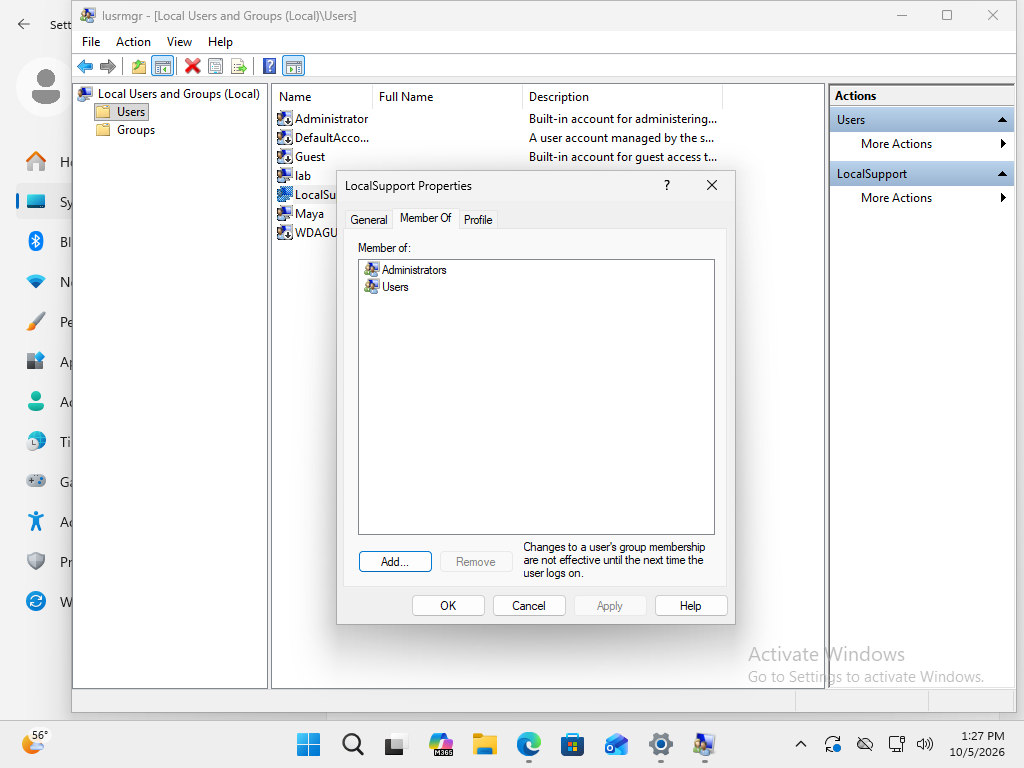
Double-click an account and open Member Of. Maya and Jordan should belong to Users, not Administrators. For LocalSupport, choose Add, check that the location is the guest, enter Administrators, select Check Names, then OK > Apply. The account name is not what grants its privileges; membership matters.

Read-only commands offer another view of these same local accounts. net user lists accounts; net user Maya shows Maya’s details. net localgroup Users and net localgroup Administrators list those groups’ members on English Windows. Do not add /domain or account-changing switches. The lab creates all three users in lusrmgr.msc, not through NET commands.

LocalSupport Properties, Member Of tab, lists Administrators and Users. Apply is disabled after the change was saved.
Saved result: LocalSupport has administrator membership. This does not enable remote access. Open the image for original resolution.

Pause and explain

Why verify membership after clicking Create?

Compare your reasoning

Account creation and privilege assignment are different operations. Inspect the actual groups and test sign-in before reporting that the workstation is ready.

Technical references for this section

04

Each user gets a personal Windows workspace

A User Profile contains user-specific settings and folders. The account is the identity; the profile is its Windows workspace. First interactive sign-in normally initializes the profile, so a newly created account can exist before its desktop and personal folders have been prepared.

After signing in as the assigned user, enter %USERPROFILE% in File Explorer’s address bar and record the actual location. Maya and Jordan should have different paths. Create Reception-Practice in Maya’s Documents and Dispatch-Practice in Jordan’s Documents. Do not infer the path only from a display name or request administrator permission to take over another user’s folder.

Separate profiles do not mean every file on the computer is private. Public folders, shared locations, changed permissions and folder redirection can behave differently. Use the observed folder and its intended scope when explaining the result.

File Explorer shows C:\Users\Maya\Documents in the address bar and the Reception-Practice folder inside it.
Verified result while signed in as Maya: Reception-Practice is in her Documents, not another user’s folder. Open the image for original resolution.

Pause and explain

Is deleting a profile folder a safe way to remove a user account?

Compare your reasoning

No. The account record and profile are different things, and deleting files can destroy work. Neither removal is part of this lab.

Technical references for this section

05

Profile types: benefits and limitations

A local profile keeps the user’s settings on one computer. It works without a profile server, but those settings do not automatically follow the user to another PC. A traditional roaming profile uses a configured server copy to carry supported profile data between compatible computers. That convenience adds network, synchronization and administration requirements. A domain account alone does not enable roaming, and Microsoft account sync or OneDrive is a different mechanism.

A mandatory profile provides administrator-defined settings and discards user changes to profile settings at sign-out. It can give a shared training environment a consistent starting point, at the cost of lasting personalization. It does not reset every system change or guarantee that every file disappears. Users need an approved location for saved work.

A temporary profile is a fallback when Windows cannot load the normal one. Files and settings kept in that temporary workspace may be lost at sign-out. An unfamiliar desktop alone is not proof: check the sign-in message and actual profile path. Preserve current work safely and seek support before signing out or deleting anything. Profile types describe workspace behavior, not standard or administrator privileges.

Pause and explain

How does a mandatory profile differ from a temporary profile?

Compare your reasoning

A mandatory profile deliberately restores prepared settings. A temporary profile is an unexpected fallback caused by a loading problem. Neither label grants administrator rights.

Technical references for this section

06

Lab connection: evidence of the concepts

A useful handoff identifies what changed, why it changed and how you checked it. Record the three account names and types, both employee profile locations, the membership evidence and the standard-user elevation behavior. Describe any failed test honestly. Never include credentials or recovery answers.

The local support account is verified at the VM console. It can provide a local sign-in route when suitable conditions exist, but this standalone test does not prove remote connectivity, domain-outage recovery or access to an encrypted or damaged disk. Real organizations need approved management of device-specific support credentials; the shared classroom password is not a production recommendation.

The VM lab guides one action at a time: read the purpose, follow the numbered directions in your assigned guest, and compare the result with “You should see” before checking the box. Brief & help adds optional detail; essential directions stay visible. Add your name and screenshots of the account memberships and the two profile paths. A short optional note records any unresolved issue. The checklist and images stay only in the current browser session. Download the PDF to save progress, open it to check the screenshots, and submit through the instructor’s external assignment system. The PDF is a static snapshot and cannot be loaded back into the form. Downloading is not submission, and checked boxes are not a grade or independent verification. Retain the lab accounts for review and restore or remove them only when instructed.

Pause and explain

What evidence belongs in the PDF instead of a password?

Compare your reasoning

Record the account type, observed profile path, membership check, test outcome and any remaining problem. Credentials stay private.

Technical references for this section

07

Account tools follow the identity source

Settings → Accounts → Your info identifies the current sign-in source and can offer a supported switch between local and consumer Microsoft sign-in. Settings → Accounts → Other users manages other accounts on this device. On supported Pro systems, Local Users and Groups provides another local-management route. AD Users and Computers instead manages domain objects. A familiar user name does not establish which account system you are editing.

Standard users can use installed programs and may install some applications confined to their own profile. Machine-wide installation or protected changes commonly require elevation. An administrator can still see a UAC consent prompt; admin membership is not a promise that every program runs elevated. Review the requested change and use approved credentials only for the required task.

Pause and explain

Does a standard user opening an app prove that they have administrator rights?

Compare your reasoning

No. Ordinary use and some per-user installations do not require machine-wide administration. Inspect membership and the change’s scope; elevation is a separate step.

Technical references for this section

The 4 lesson terms

The same terms and definitions used in the site’s study tools. Supporting labels in the reading are not extra required vocabulary.

Local Account

A user account created and managed on one Windows computer, rather than through a Microsoft consumer account or an organization’s domain.

Factual sources
Microsoft Account

A personal Microsoft online identity used with services such as Outlook.com and OneDrive, and optionally to sign in to Windows.

Factual sources
Administrator Account

An account with permissions to perform administrative tasks on a computer. This permission level is separate from whether the account is local, Microsoft, or domain-based.

Factual sources
User Profile

The collection of a Windows user’s personal settings and files, including desktop preferences and user folders. It is associated with an account, but is not the account itself.

Factual sources

Lesson 1.5

Desktop preferences

A useful Windows workspace supports the person’s task. Choose settings for a reason, observe their effects and preserve a way back. This chapter explains the concepts; the separate VM guide supplies the practice steps.

Use only the assigned guest for practice. The lab remains an instructor-review draft with incomplete action captures and GUI verification. Device, Windows build, activation and policy can change available controls. The matching reading PDF is an instructor-review draft; manual document-accessibility acceptance remains pending.

02

Scale, resolution and usable space

Display resolution is the width and height of the displayed image in pixels. It is not the monitor’s physical size. Display Settings also contains scale, which changes the apparent size of text, apps and controls.

Larger scale can improve readability while leaving less working space. A lower resolution is not the same adjustment and can reduce sharpness on a physical display. Use supported choices, inspect the result and preserve the original values. The pictured 1024 × 768 is a VM example, not a recommended resolution for every computer.

Windows 11 guest Display settings, with Scale at 100 percent and Display resolution at 1024 by 768.
Baseline example: read your own Scale and Display resolution before changing a value. Open the image for original resolution.

Pause and explain

Does a larger scale add pixels to the screen?

Compare your reasoning

No. It changes the size of interface elements within the existing display resolution.

Technical references for this section

03

Organize windows without confusing identities

Minimize hides a window while leaving it available through the taskbar. Maximize uses more of the available screen; restore returns the window to its previous size. Close ends that window and may prompt to save work. Some applications retain background processes after their windows close.

Snap places windows in a layout for simultaneous comparison. A Virtual Desktop instead groups windows into another workspace in the same Windows session. It is not a new user, a security boundary or a virtual machine. Choose the organization that supports the task.

Pause and explain

Does minimizing an application uninstall it?

Compare your reasoning

No. Window visibility and installation are separate concepts.

Technical references for this section

04

Make repeated actions predictable

The Taskbar combines app launch points, access to running windows and system indicators. A pinned icon can remain when the app is closed; a running indicator conveys a different state.

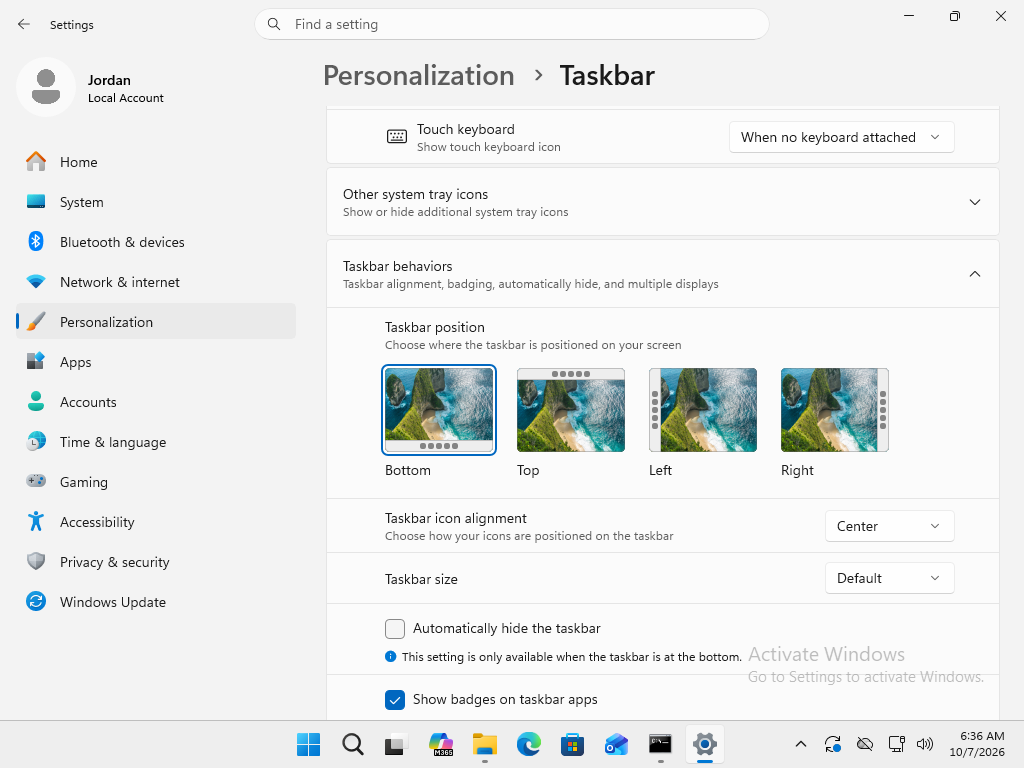
Alignment changes icon arrangement, not application installation or account permissions. The documentation build separates taskbar position from icon alignment. Older builds can expose different choices. Do not bypass activation or management restrictions to reproduce a screenshot.

Windows 11 Taskbar behaviors showing Taskbar position at Bottom and a separate Taskbar icon alignment list set to Center.
Use Taskbar icon alignment, not Taskbar position. Earlier builds may call the list Taskbar alignment. Open the image for original resolution.

Pause and explain

Would moving the Start button give an account administrator access?

Compare your reasoning

No. Layout preferences do not grant privileges.

Technical references for this section

05

Separate a synchronized clock from local time

Time Zone Settings determine how the system shows the local hour. Clock synchronization keeps time aligned with a time source. The clock can be synchronized and still show an inappropriate local hour when the zone is wrong.

Choose the appropriate regional zone rather than assuming a single UTC offset applies all year. Daylight-saving rules can change the offset. In the lab, verify or select Eastern Time without deliberately changing the underlying date, clock or privacy permissions.

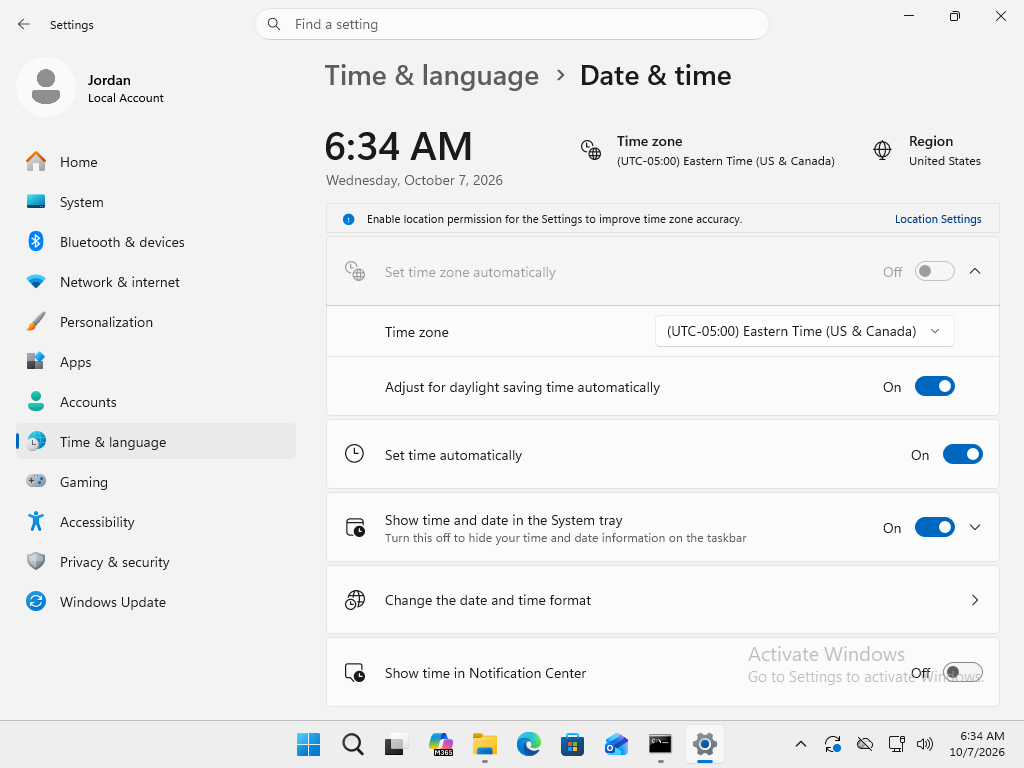
Calendar invitations, meeting reminders and locally displayed log timestamps can be misleading when the displayed zone is wrong. Automatic time-zone selection can depend on location services and policy; it is not guaranteed by merely having internet access. Verify the selected zone without changing privacy permissions just to reproduce a lab screenshot.

Windows 11 Date and time settings showing Eastern Time, automatic daylight saving enabled and automatic clock time enabled.
Time zone and Set time automatically are separate controls. Do not change location permission for this task. Open the image for original resolution.

Pause and explain

Does automatic clock time guarantee that automatic time-zone selection is enabled?

Compare your reasoning

No. They are separate controls and may have different dependencies or policies.

Technical references for this section

06

Power behavior and an honest handoff

Power Settings can control when the screen switches off and when the system sleeps. Turning off the display alone does not prove the computer is asleep. Available sleep and battery options depend on hardware, drivers and policies; a VM may not expose them.

For practice, record original values, make only approved supported changes and attach evidence while the result is visible. Restore the baseline afterward. The website checklist is self-reported and session-only: download the PDF to save a record, and submit through the instructor’s assignment system. Missing controls and unfinished work belong in the issue note, not a fabricated success claim.

Windows 11 guest Power settings with Screen timeout expanded. The plugged-in screen-off list is present; there is no sleep timeout.
This virtual machine exposes Screen timeout but not a sleep timer. Your available choices may differ. Open the image for original resolution.

Pause and explain

Is checking every box proof that the settings worked?

Compare your reasoning

No. Actual observations, task-specific screenshots and instructor review are separate from a self-reported checklist.

Technical references for this section

07

Organize access without changing the app

Start supports app search, pinned access, recommendations and configured folder links. Pinning, unpinning and grouping supported items changes launch organization, not installation. Settings → Personalization → Start controls available recommendations and folder choices; labels and layouts vary by Windows build. Windows 10 Live Tiles are not the Windows 11 Start model.

Taskbar pins, search, Task View and the system tray have distinct jobs. Network, sound and battery indicators are not installed-app shortcuts. Taskbar behaviors can include auto-hide and multiple-display choices where supported. Accent color and transparency concern appearance; notifications concern interruptions. Policy or activation can limit options, so record unavailable controls instead of promising every old Windows setting.

Pause and explain

If you unpin an app from Start, must you reinstall it to use it again?

Compare your reasoning

No. Unpinning removes that launch position, not the installed app. Search for the app or use another supported shortcut.

Technical references for this section

08

Same content or more workspace?

Duplicate mirrors the same content on connected displays. Extend provides additional workspace. Display Settings lets supported systems identify and arrange displays, choose a primary display and set per-display scale, resolution and orientation. Arrange the diagram to match the real desk so the pointer crosses the expected edge.

Refresh rate in Hz describes how often the display updates; resolution counts pixels. Supported rates depend on the display, connection and graphics setup. Night light changes color warmth, not refresh rate or scale. Color calibration helps align color appearance for suitable work and is distinct from an accessibility color filter. A VM without a second display cannot prove a multiple-monitor test.

Pause and explain

Which mode lets you keep notes on one display and a different app on the other?

Compare your reasoning

Extend. Duplicate mirrors the content. Check the arrangement, primary display and supported per-display settings before claiming the workspace is correct.

Technical references for this section

09

A keyboard shortcut performs an action

A desktop shortcut is a link to an app, file or folder; a keyboard shortcut is a key combination. Where supported, a desktop link’s Properties can assign a shortcut key. Verify the target before creating a link and avoid combinations already used by the application or Windows.

Win+D shows or restores the desktop; Alt+Tab switches windows; Win+Tab opens Task View. Win+Left/Right can snap a window, and Win+Ctrl+Left/Right switches virtual desktops when others exist. Ctrl+Shift+Esc opens Task Manager. Ctrl+C/V copies and pastes in supported contexts. Alt+F4 closes the current window—heed save prompts. Minimize and close are not interchangeable.

Pause and explain

Would Alt+F4 be a good substitute for minimizing a window with unsaved work?

Compare your reasoning

No. It requests closing and may lose work if a save prompt is mishandled. Minimize preserves the window for later use.

Technical references for this section

010

Screen-off, sleep or hibernate?

Screen-off stops displaying the image while the system can remain awake. Sleep uses a lower-power state and generally retains the working session in powered memory. Hibernate saves the session to storage and uses less power, but availability depends on the device. Shut down ends the session. Save important work regardless of the chosen state.

AC and battery timeouts can differ. Energy saver reduces some activity and power use; Power mode trades performance and consumption. Classic power plans and lid/button actions are separate controls whose availability depends on hardware and policy. A manufacturer battery charge limit can reduce wear; it is not the same as screen timeout and is not a claim that ordinary batteries would otherwise endlessly overcharge.

Choose settings for the actual task. A long-running approved job may need the system awake even with the display off. Do not assume a network task continues through sleep, or change the host because a VM lacks battery and lid settings.

Pause and explain

A file transfer must keep running. Does a dark screen prove the system is still awake?

Compare your reasoning

No. Inspect the screen and system-state controls separately. Sleep can interrupt activity; verify the approved job and device behavior.

Technical references for this section

The 10 lesson terms

The same terms and definitions used in the site’s study tools. Supporting labels in the reading are not extra required vocabulary.

Settings App

The main Windows app for changing many device and user options, including display, accounts, accessibility, and updates.

Factual sources
Control Panel

The traditional Windows collection of configuration tools. Some settings and administrative options remain here alongside the newer Settings app.

Factual sources
File Explorer

The Windows file manager used to browse folders and drives and perform actions such as copying, moving, and renaming files.

Factual sources
Application Shortcuts

Links that open an application or its target without being the application itself. Removing a shortcut normally does not uninstall its app.

Factual sources
Display Settings

Windows options for configuring screens, including arrangement, scaling, resolution, and orientation where supported.

Factual sources
Display resolution

The width and height of the displayed image in pixels, such as 1920 by 1080. It is different from a screen’s physical size.

Factual sources
Time Zone Settings

Options that select the regional time zone used to display local time. The correct zone matters even when the underlying clock is synchronized.

Factual sources
Taskbar

The Windows bar containing controls such as Start, app buttons, and the notification area. It helps launch apps and switch between open windows.

Factual sources
Power Settings

Options controlling energy use and behavior such as screen-off and sleep timing. Available choices depend on the device and management policies.

Factual sources
Virtual Desktop

An additional Windows workspace for organizing open windows on the same computer. It is not a separate virtual machine or a different user account.

Factual sources

Lesson 1.6

Accessibility for user needs

Accessibility tools offer different ways to perceive information and operate a computer. Begin with the person’s task and stated difficulty, not an assumption about a diagnosis. Choose a focused change, test the effect and preserve the original setup.

Practice only in the assigned Windows guest. Audio, microphone, languages and eye-tracking hardware may be unavailable. A blocked practical test should be reported honestly. This local review chapter accompanies the five support tickets; document and complete GUI acceptance remain open.

01

Contrast and color carry different information

Contrast Themes change interface color combinations to improve separation between elements such as text, backgrounds and selected controls. A dark background alone does not guarantee useful contrast. Ask the user to compare the actual task rather than choosing a theme for them.

Color Filters transform displayed colors. They are not the same as a contrast theme and should be selected for a specific need. Important states still need labels or symbols: an unlabeled red or green dot remains weak communication even when a filter is available.

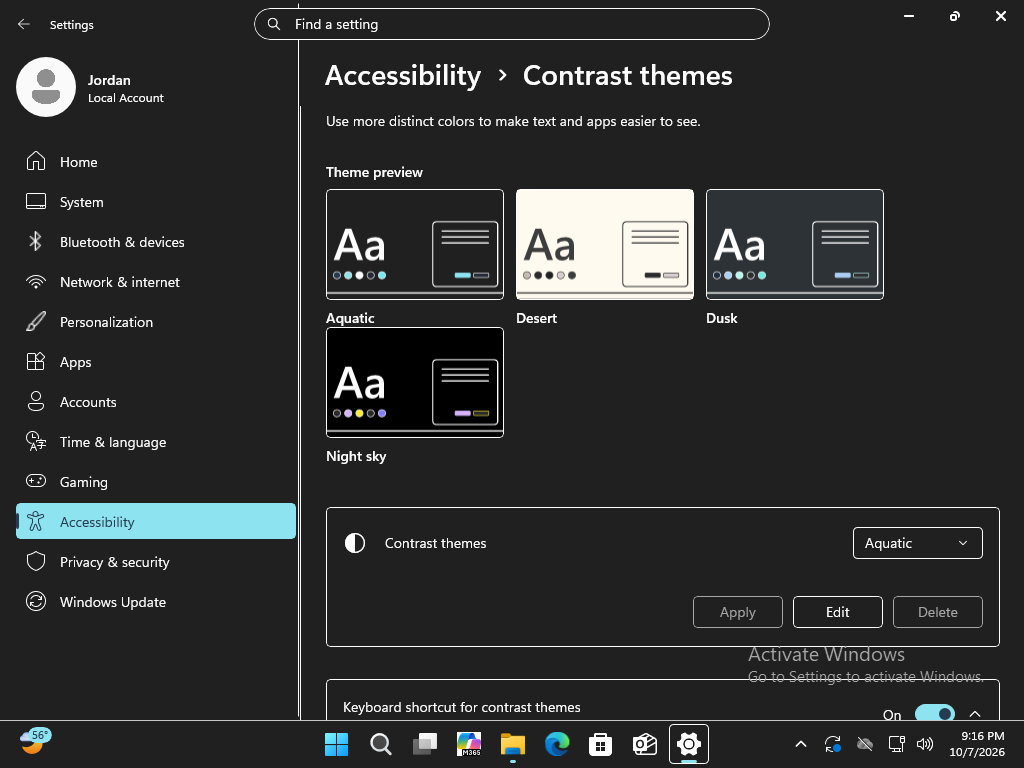
The captured Windows 11 contrast choices are Aquatic, Desert, Dusk and Night sky. Preview, select and Apply a suitable combination; supported editing can customize colors. Color Filters offers grayscale/inversion and options aimed at red-green or blue-yellow distinctions. These are alternatives to compare with the user, not a rule to assign a preset from an assumed diagnosis.

Windows Settings using the Aquatic contrast theme, with light text on a dark background and a cyan selection.
Aquatic applied in the test guest. Test readability with the user; this is not a universal recommendation. Authentic Windows 11 Pro documentation guest capture · IT Essentials Class · October 7, 2026. Microsoft software; no endorsement. Open the image for original resolution.

Pause and explain

Does a color filter replace descriptive status labels?

Compare your reasoning

No. Accessible source content should not rely on color alone.

Technical references for this section

02

Locate, enlarge or listen

Mouse Settings affect how the pointing device behaves. Accessibility pointer size and style help make its location visible. A text cursor has a different job: it marks where typed text will be inserted. Its indicator and thickness can be adjusted separately.

Magnifier enlarges screen content, which can make small details easier to inspect while reducing the surrounding context in view. Narrator instead provides screen-reader speech and navigation using interface information supplied by applications. An unlabeled control or inaccessible image can remain a barrier; neither tool automatically repairs poor source content.

Pause and explain

Is Narrator a voice-command tool?

Compare your reasoning

No. Its primary role is screen-reader output and navigation, not listening for commands.

Technical references for this section

03

Channels, devices and captions

Audio Settings involve the selected input and output devices as well as sound behavior. A microphone receives input; speakers or earphones provide output. Working host audio does not prove the VM has an available audio or microphone route.

Mono Audio combines left and right channels. Live Captions instead transcribes supported speech audio into text. Caption recognition can make mistakes, especially with unfamiliar technical vocabulary; verify important instructions against accurate written content. Initial language files may require a download, and language or translation support varies by device.

System → Sound selects the input and output devices and their levels. Check the actual selected device, mute/volume, connections and a harmless playback or microphone test. Spatial sound and enhancements depend on the device/driver; they are not the same as Mono audio. Windows Get Help audio diagnostics can assist troubleshooting, but report its observed result rather than assuming it repaired every cause.

Pause and explain

Does Mono Audio create a transcript?

Compare your reasoning

No. Combining audio channels and recognizing speech are different operations.

Technical references for this section

04

Change the input route

Sticky Keys allows modifier combinations to be entered one key at a time. Ctrl, Alt and Shift are examples of modifiers. The tool addresses difficulty holding multiple keys simultaneously; it does not enter words by speech.

The On-Screen Keyboard provides selectable keys without requiring the physical keyboard. It is not limited to touchscreens. Choose an input route based on the actual barrier and test a harmless text field before assuming it works for the person’s application.

Pause and explain

Should every keyboard option be enabled together?

Compare your reasoning

No. Start with the relevant change and observe its effect; unrelated changes may make input harder.

Technical references for this section

05

Control, dictation and hardware prerequisites

Speech Recognition is the broader process of recognizing spoken input. Legacy Windows Speech Recognition has been replaced by Voice Access on newer Windows 11 releases. Voice Access supports operating the computer and entering text by voice. After its initial language setup, recognition can work on-device.

Voice typing focuses on dictation into a text field and requires an internet connection and a usable microphone. Narrator has the opposite information direction: it reads interface information aloud. Eye control is another input approach but requires compatible eye-tracking hardware and setup; an ordinary webcam is not automatically sufficient.

Do not bypass microphone permissions or modify the host to force a demonstration. If the guest lacks a required device or approved language setup, identify that prerequisite and distinguish recognition of the tool from a completed practical test.

Pause and explain

What can you document without an eye tracker?

Compare your reasoning

Its purpose and required hardware—not a successful hands-on eye-control test.

Technical references for this section

06

Prove the effect, preserve the preference

The five support tickets apply these distinctions inside an assigned VM. Record original values, test supported changes and attach screenshots while each result is still visible. Add a brief description explaining the effect, not a long essay or private health information.

Restore only your practice changes. Review the five evidence images, download the PDF and inspect the saved file before submitting it through the instructor’s assignment system. Browser entries are session-only; the PDF is a static saved report and cannot restore the form. Checkboxes are self-reports, not grades or proof of mastery.

Pause and explain

Is downloading the PDF the same as submitting it?

Compare your reasoning

No. Submit the saved PDF using the external assignment process specified by the instructor.

Technical references for this section

07

Change the difficult motion

Pointer visibility and mouse behavior solve different barriers. Primary-button selection supports the preferred hand; pointer speed affects movement. Double-click speed changes the interval accepted between clicks. ClickLock can support dragging without continuously holding the button. Wheel settings control scrolling; pointer precision changes acceleration, not the screen’s resolution.

Mouse Keys offers a numeric-keypad route to pointer movement when supported. It is not the same as Sticky Keys or the On-Screen Keyboard. Compare one change at a time in a harmless task and retain the original settings. Some controls appear under Bluetooth & devices → Mouse and additional mouse settings rather than the Accessibility pointer page.

Pause and explain

A pointer is easy to see, but holding the button during a drag is difficult. Is a brighter pointer the direct solution?

Compare your reasoning

No. Investigate ClickLock or another suitable input method and test the drag operation. Visibility and sustained button pressure are different barriers.

Technical references for this section

08

Enlarge details without losing your place

Magnifier’s Full screen view enlarges the whole visible workspace. Lens enlarges a region near the pointer. Docked view places a magnified region alongside the normal view. Choose the amount of context the task needs; zoom increments and tracking preferences affect navigation.

Win+Plus starts or increases Magnifier; Win+Minus reduces zoom and Win+Esc exits. Keep a known exit before experimenting. Magnifier can also read supported text aloud, but that does not make its zoomed view identical to Narrator’s full screen-reader navigation.

Pause and explain

You need a closer look at one label but want to keep the rest of the desktop visible. Which view could fit?

Compare your reasoning

Lens or Docked may preserve more context than Full screen. Test the view and zoom with the user; Win+Esc is the exit.

Technical references for this section

09

A screen reader needs navigation

Narrator can be toggled with Win+Ctrl+Enter. Voice, speaking rate and verbosity control how spoken information is presented. Verbosity changes the amount of detail, not the underlying permission or content. A supported braille display is an additional output route with its own setup requirements.

Narrator’s modifier key is normally Caps Lock or Insert. Narrator+Space toggles Scan mode, which supports reading and moving through text and controls. In appropriate content, arrow keys move through items and H can navigate headings. Mode, focus and application context matter; an editable field behaves differently from page navigation. Test actual headings, links and labels rather than assuming speech proves the app is accessible.

Pause and explain

Narrator speaks, but every button is announced only as button. Has the barrier been fully solved?

Compare your reasoning

No. The interface still lacks useful labels. Verify meaningful control names and navigation as well as audible speech.

Technical references for this section

010

Know the starting point and prerequisite

Sticky Keys can be opened through Accessibility → Keyboard; the optional Shift-five-times shortcut depends on its configured behavior. Modifiers stay available for the next key. Available options include modifier feedback sounds and stopping Sticky Keys when two keys are pressed together. The On-Screen Keyboard opens with Win+Ctrl+O and can provide keys through pointing or supported alternative input, including access from the sign-in accessibility controls. Its Options can change supported input behavior; do not confuse it with a touch-only keyboard.

Voice typing starts with focus in a text field and Win+H, with a microphone and internet connection. Dictated punctuation or the supported automatic-punctuation option can help format text, but technical words still need proofreading. Voice Access adds control commands and initially needs its supported language model; distinguish command mode from dictation and verify what was recognized. Text cursor thickness and its colored indicator help locate the insertion point, not control the pointer.

Live Captions can start with Win+Ctrl+L. Initial language files may need a download; captions are processed on the device. Style and position can be adjusted. Capturing microphone speech is a separate choice from captioning the computer’s audio. Translation requires a supported Copilot+ configuration, not every Windows 11 PC. Eye control additionally needs a supported tracker and calibration; report hardware-dependent practice as unavailable when the device is absent.

Pause and explain

Voice typing opens while no text field is focused. Is the microphone alone enough to produce a document?

Compare your reasoning

No. Focus a supported text field, verify connectivity and the microphone, then check the recognized text. Opening a tool is not evidence of a successful task.

Technical references for this section

The 12 lesson terms

The same terms and definitions used in the site’s study tools. Supporting labels in the reading are not extra required vocabulary.

Mouse Settings

Controls for mouse behavior, such as pointer speed, primary button choice, and scrolling. Related accessibility controls can change pointer visibility.

Factual sources
Color Filters

Accessibility adjustments that change displayed colors to help a user distinguish items that would otherwise look too similar.

Factual sources
Contrast Themes

Accessibility themes using strongly contrasting interface colors to make text and controls easier to distinguish.

Factual sources
Magnifier

A Windows accessibility tool that enlarges some or all of the screen so a user can inspect small text and details.

Factual sources
Narrator

Windows’ built-in screen reader, which communicates screen content and interface information through speech or supported braille output.

Factual sources
Audio Settings

Windows controls for selecting sound input and output devices and adjusting options such as volume and microphone levels.

Factual sources
Mono Audio

An audio option that combines left and right stereo channels so the combined content can be heard through either side.

Factual sources
On-Screen Keyboard

A visual keyboard displayed on the screen that lets a user enter text with a pointer, touch, or other supported selection method.

Factual sources
Sticky Keys

A keyboard accessibility option that allows shortcut keys, such as Ctrl then S, to be pressed one after another instead of held together.

Factual sources
Speech Recognition

Technology that interprets spoken words as text or commands. The older Windows Speech Recognition tool was replaced by Voice Access in Windows 11 22H2 and later.

Factual sources
Voice Access

A Windows 11 accessibility feature for controlling the PC and entering text by voice. After its language setup, it can work without an internet connection.

Factual sources
Live Captions

A Windows accessibility feature that turns supported spoken audio into on-screen text, including audio from apps and optionally the microphone.

Factual sources

Lesson 1.7

Windows, app and driver updates

Updates change installed software. A technician chooses the appropriate source, plans the interruption and verifies the actual result. Windows, applications and device drivers can use different update routes.

The separate maintenance ticket uses only the assigned Windows 11 guest. No forced optional drivers, OS-version upgrade, arbitrary uninstall or System Restore. Available controls depend on version, policy and device. Report blocked or no-update states honestly.

01

Windows updates and app patches

Windows Update supplies supported operating-system fixes, security updates and some drivers. A software update can fix bugs or add capabilities. A security patch addresses a vulnerability that could be exploited. Cumulative packages can include earlier fixes, so the package name does not necessarily describe a single change.

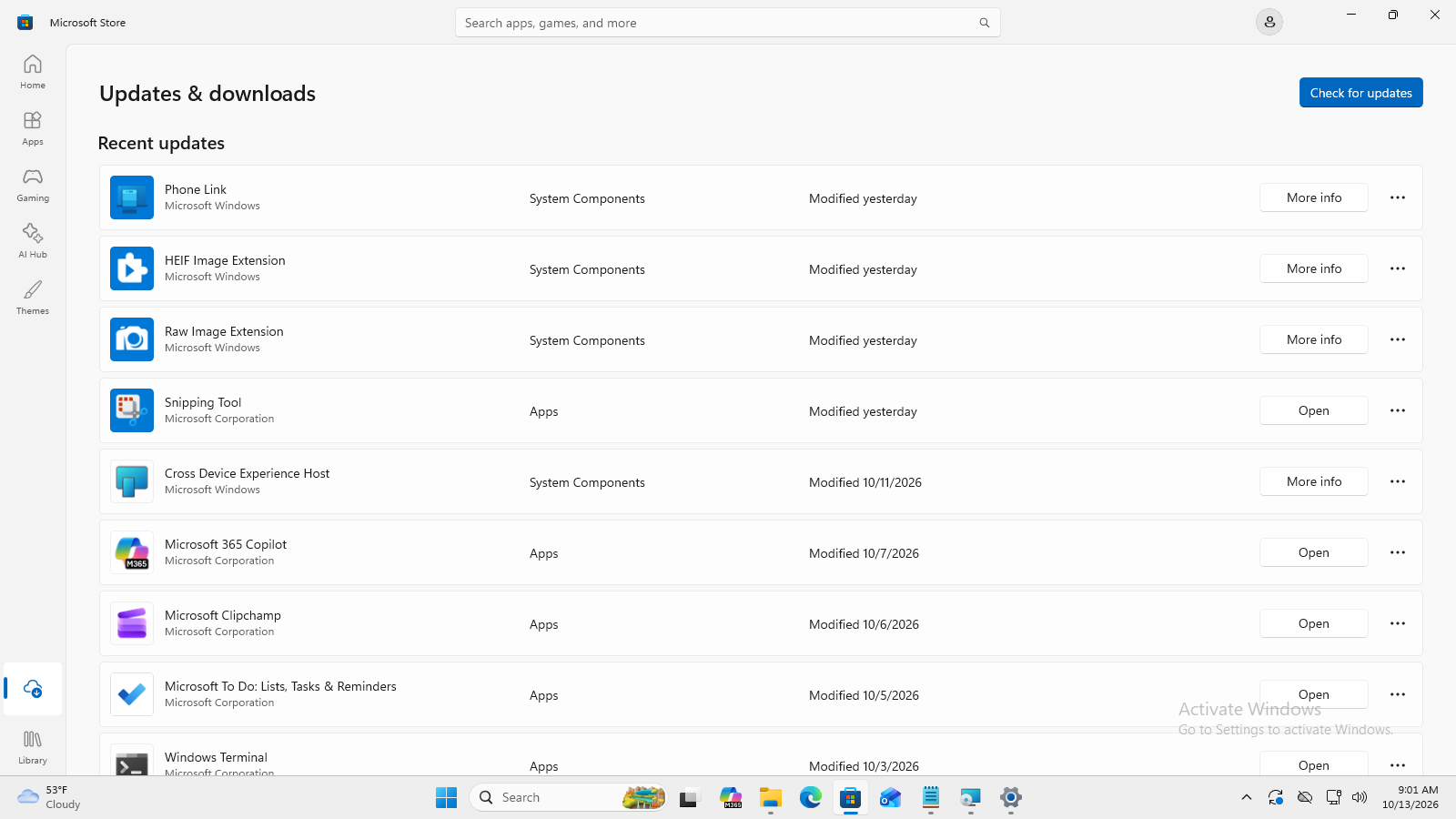
Microsoft Store maintains supported Store apps. Other desktop applications may use an internal updater or an official publisher download. A current Windows status does not establish that every application is current. Organizational approval, licensing and compatibility still apply.

Scheduled monthly releases help organizations plan maintenance, but urgent fixes can arrive outside that schedule. Pausing updates leaves changes pending; it is a temporary scheduling decision with security trade-offs. Do not memorize one universal pause limit or promise every build exposes the same switch.

Pause and explain

Does a security patch have to wait for the next monthly release?

Compare your reasoning

No. Emergency fixes can arrive outside a scheduled release cycle.

Technical references for this section

02

Status, active hours and restarts

Read the actual state: an offered update, a download in progress, installation, restart required and completed maintenance mean different things. An up-to-date status can appear beside a separate Windows-version upgrade offer. A feature/version upgrade needs its own compatibility and deployment plan.

Active hours describe when the device is normally in use and help reduce automatic restart interruptions. Automatic adjustment and a manually selected working period serve different needs. Other restart settings or management policy can change behavior, so save work and review restart requirements.

A downloaded package or pending restart is not evidence of a finished maintenance cycle. Use an approved restart after saving work, then recheck status and history. If an error appears, preserve its code and the observed state rather than marking the operation successful.

Advanced options can include receiving supported updates for other Microsoft products. This does not maintain every third-party app. Delivery Optimization manages supported Microsoft update downloads and can use permitted peers or caches, with bandwidth controls. Download delivery and choosing which application to update are different decisions; the lab leaves sharing and management policy unchanged.

Windows Update reports up to date and separately offers Windows 11 version 26H2.
A separate OS-version upgrade offer does not mean routine updates failed. Leave the version upgrade alone in this ticket. Microsoft Windows 11 Pro documentation guest, October 12, 2026. Used with permission from Microsoft. No endorsement. Open the image for original resolution.

Pause and explain

Does active-hours configuration mean updates never need a restart?

Compare your reasoning

No. It helps plan automatic restarts; some updates still require one.

Technical references for this section

03

Optional updates require a reason

Optional updates may include additional fixes or device drivers. Availability depends on the device, build and update source. Optional means selection is conditional, not that the item is useless or that every item must be installed.

Inspect the name, type and relevance before selecting a change. A working device without an identified issue does not automatically need its optional driver replaced. A no-updates list is a valid outcome. Keep unrelated choices unchecked and do not install something only to obtain a screenshot.

Pause and explain

Can a student complete the inspection when no optional update is available?

Compare your reasoning

Yes. Record the observed state and distinguish inspection from an installation that did not occur.

Technical references for this section

04

The driver must match the device

A driver enables communication between Windows and a hardware device. Device Manager exposes device status and driver provider, version and date. Windows Update and Device Manager offer Microsoft-supported update routes; the exact manufacturer may supply a relevant package for the device and operating system.

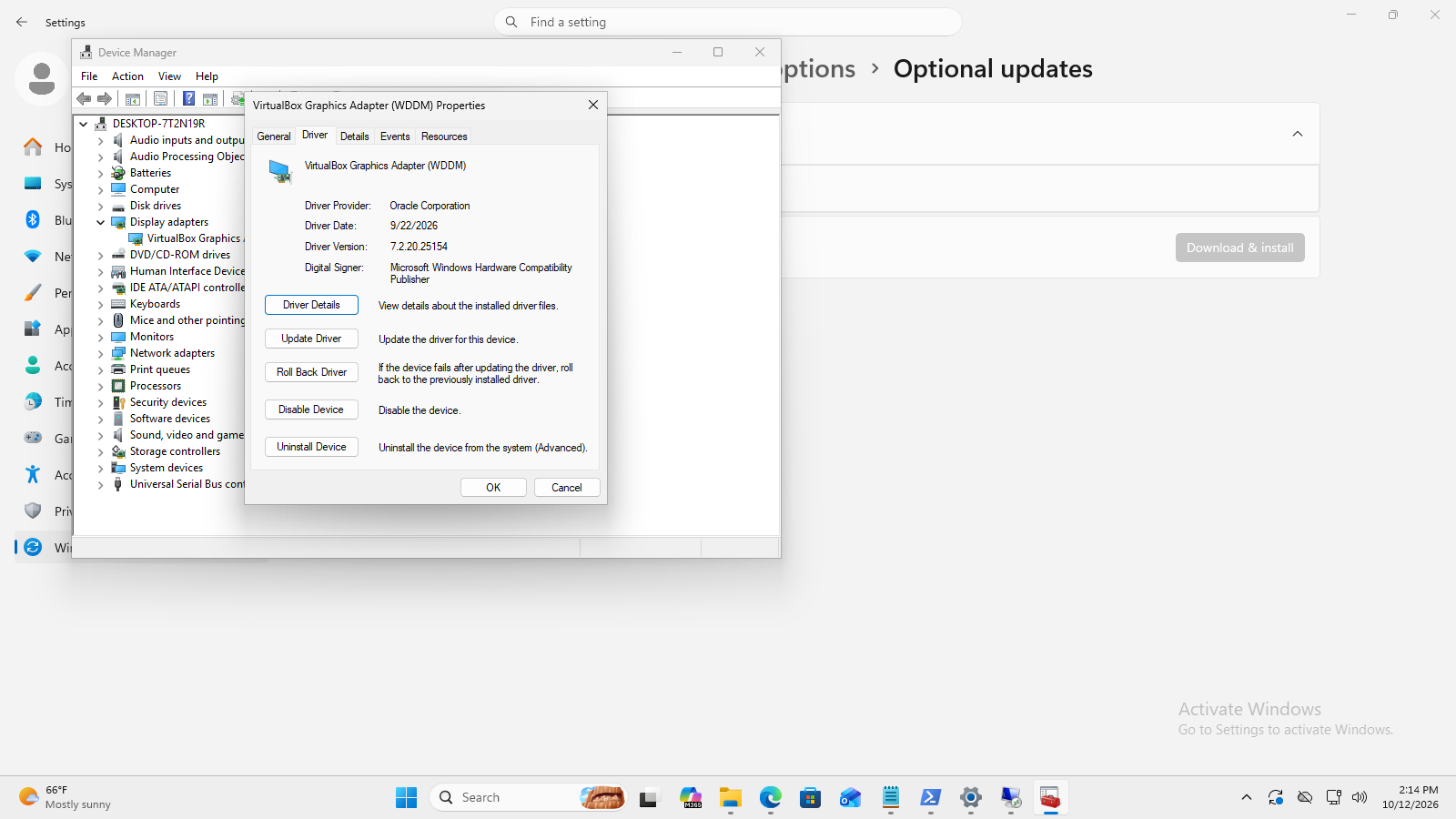
In the pictured documentation guest, Oracle Corporation is the driver provider and 7.2.20.25154 is its installed version. These fields identify the current driver; they do not establish that it is the best available release.

Check the exact device model or hardware identity, supported OS and architecture through the official source. A newer-looking date or version does not by itself prove a better driver. Automatic search may report that the best available driver is already present.

A VM presents virtual devices. Its virtual display adapter is different from the physical host GPU. Use the supported hypervisor guest software for that virtual hardware when approved, not an unrelated host driver. Roll Back Driver can be unavailable when no suitable previous driver is retained or access is insufficient.

VirtualBox Graphics Adapter Driver tab lists Oracle Corporation, September 22 2026 and version 7.2.20.25154.
Read Provider, Date and Version. The screenshot demonstrates inspection, not an update or rollback. Microsoft Windows 11 Pro documentation guest, October 12, 2026. Used with permission from Microsoft. No endorsement. Open the image for original resolution.

Pause and explain

Does an unavailable Roll Back Driver button mean the student should download an arbitrary older driver?

Compare your reasoning

No. Investigate the device, approved source and recovery plan. A disabled button does not authorize a replacement.

Technical references for this section

05

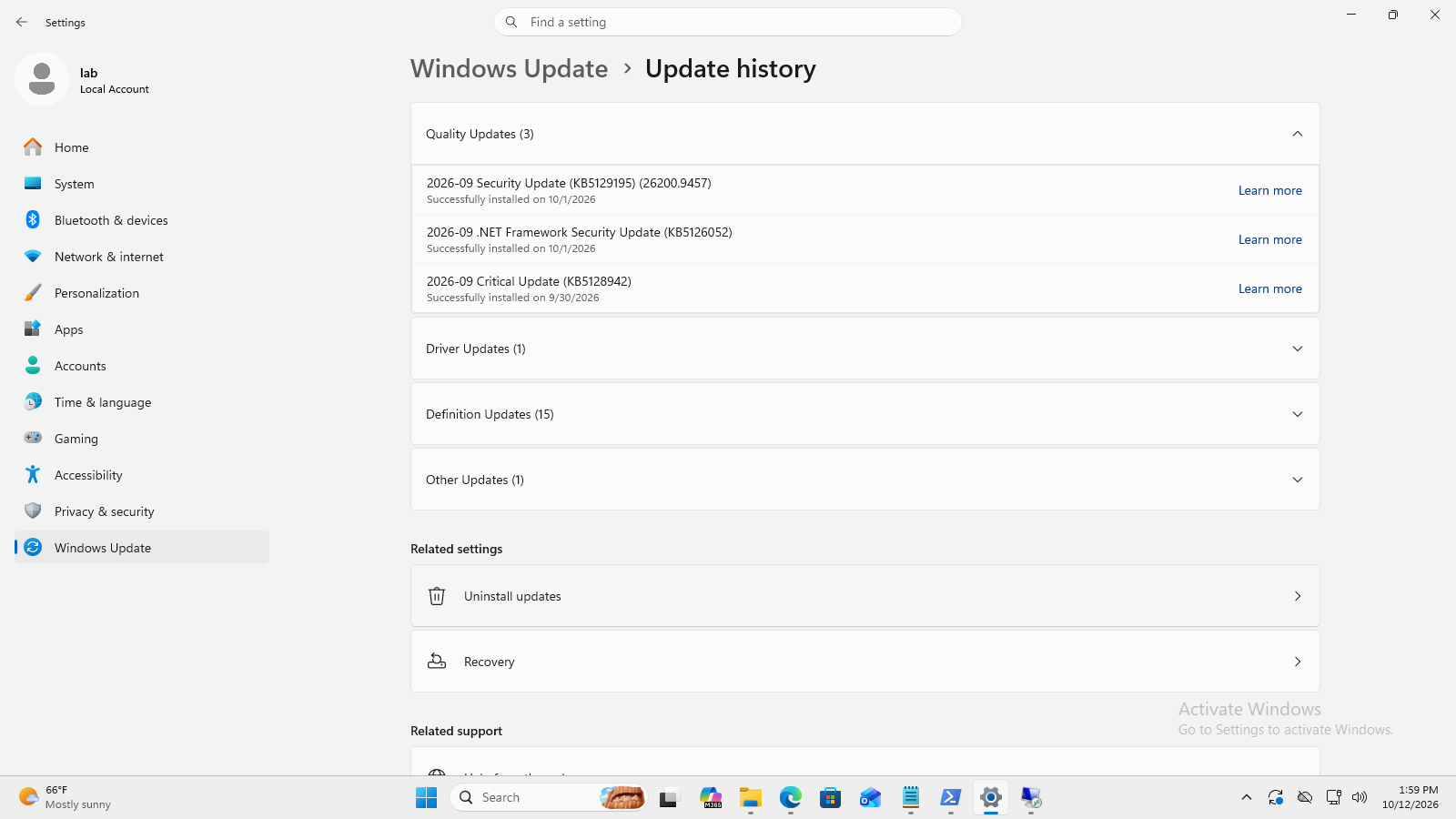
History supports investigation

Update history records supported Windows update categories, identifiers and installation dates. Depending on the system, categories can include quality, feature, driver, definition or other updates. Expand the relevant category and read the actual item rather than assuming every category exists.

The documentation screenshot records KB5129195 as installed on October 1, 2026. The KB identifier names the update and the date records its installation; neither alone proves why a later problem occurred.

History is evidence of recorded Windows changes, not a universal log of every application updater. Compare the reported symptom with the update identifier and other recent changes. A symptom that follows an update does not prove the update caused it.

Uninstalling a supported update, rolling back a driver and System Restore are different recovery routes with different prerequisites. Not every update is removable, and removal may undo security fixes. System Restore requires a usable restore point. A restore point is not a virtual-machine snapshot or a personal-file backup. Do not perform recovery solely for a lab screenshot.

Update history lists quality update identifiers and successful installation dates, with driver and definition categories below.
Read the category, identifier and date. Your recorded updates can differ. Microsoft Windows 11 Pro documentation guest, October 12, 2026. Used with permission from Microsoft. No endorsement. Open the image for original resolution.

Pause and explain

Does update history prove that a particular update caused the problem?

Compare your reasoning

No. It establishes recorded changes and timing. Further investigation is needed.

Technical references for this section

06

A truthful maintenance handoff

The lab asks you to inspect the assigned guest, configure the requested working period, check approved Windows and app updates, evaluate optional items and inspect a driver. Attach your own screenshots while the relevant result remains open. Checkboxes describe your self-reported work, not verified mastery.

Use Windows status, the app-update result, driver details and history to explain what happened. Report an outstanding restart, blocked access or no update honestly. Restore only practice settings you changed; do not restore the VM snapshot just to erase real maintenance evidence.

Download the PDF to save the session record and inspect it before submitting to the assignment dropbox. The browser form is session-only. The static PDF cannot reload the form, and downloading is separate from submitting.

Pause and explain

Does a checked box prove an update installed?

Compare your reasoning

No. Use the actual observed result and supporting evidence; leave failed actions unchecked.

Technical references for this section

The 2 lesson terms

The same terms and definitions used in the site’s study tools. Supporting labels in the reading are not extra required vocabulary.

Windows Update

The Windows service and settings used to obtain supported operating-system fixes, security updates, and some driver updates.

Factual sources
Drivers

Software that allows Windows and hardware devices to communicate. A driver must be appropriate for the device and supported operating system.

Factual sources

Lesson 2.1

Applications and optional features

Applications perform tasks such as editing documents or calculating results; Windows is the operating system that supports them. This chapter explains application sources, installation permissions and locations, maintenance choices, Windows capabilities and Remote Desktop. The separate VM ticket applies selected installation, removal and feature concepts.

AP-201 uses an assigned Windows 11 x64 guest, 7-Zip’s genuine MSI and temporary XPS Viewer support. Do not change the host or enable remote access, Hyper-V or WSL. Use the instructor-approved guest permission route; stop if a control is disabled or your screen differs from the documented build. An example screenshot does not verify your own result.

01

Application sources and productivity suites

Microsoft Store is a source for supported applications. An organization may also approve publisher installers or its own deployment repository. An available download does not grant permission, a license or the administrative rights needed to install it. Check the actual source rather than trusting a familiar filename or an advertisement.

The Store can also supply updates to installed applications. An app update changes that application, rather than installing a new copy of Windows. Some publishers manage updates inside their own app. Apps can be free, paid once or subscription-based; check their publisher, requirements and license. Store distribution does not guarantee safety, suitability or approval for a school device. This lesson requires no purchase or account signup.

Microsoft Office is a productivity application suite, not the Windows operating system. Product versions, desktop versus web use and licensing differ. Installing Windows does not prove that approved Office desktop applications are available. Choose the tool that supports the work and use the organization’s licensing route.

Microsoft Windows 11 Pro Microsoft Store at Updates and downloads. Check for updates and Recent updates are visible, including Microsoft Snipping Tool with an Open control.
Store’s Updates & downloads manages supported app updates. These recorded app entries are not a Windows installation, a new purchase or proof of school approval. Microsoft Windows 11 Pro and Microsoft Store. Used with permission from Microsoft. Original October 13 documentation guest capture; inspected without checking for updates or installing anything. Open the image for original resolution.

Pause and explain

Does a Store listing authorize installation on a school device?

Compare your reasoning

No. Organizational approval, licensing and permissions are separate checks.

Technical references for this section

02

Match the package and its installation scope

An MSI is a genuine Windows Installer package; an EXE may use a different installer. Renaming an EXE to MSI does not convert its contents. Match the package to the operating system and processor architecture. Both x64 and ARM64 are 64-bit, but that does not make their packages interchangeable.

Per-user installation targets a user context; machine-wide installation changes shared computer resources. Package design and selected settings determine what is supported. On 64-bit Windows, Program Files commonly holds native 64-bit desktop apps and Program Files (x86) commonly holds 32-bit apps. Custom and user-specific destinations exist, so a folder name is a clue rather than proof of all installation details.

On historical 32-bit Windows, desktop applications normally use Program Files, and 64-bit Windows applications cannot run. Windows 11 has no 32-bit operating-system edition. Packaged applications can use the protected C:\Program Files\WindowsApps folder. Do not take ownership of that folder or edit its contents to uninstall an app; use the supported management route.

Machine-wide changes may need authorized elevation. An approval request does not prove that a package is trustworthy; Unknown publisher means this prompt does not establish a verified publisher identity. A script is not a permission bypass. Keep UAC and organizational restrictions intact; stop if the approved guest cannot install the package. Do not move the exercise to the physical host.

Check the signed-in account in Settings → Accounts → Your info. An Administrator label identifies the account type; it does not mean every application is already running with elevated permission. A standard account may need an authorized administrator for a machine-wide change. Per-user installation can have different requirements, and organizational policy still applies.

Microsoft Windows 11 Pro User Account Control requests permission for C:\Lab\DCM-2.1\LabApp.msi. Publisher is Unknown, file origin is this computer, and Yes and No choices are visible.
An approval request is not a trust check. Publisher: Unknown does not verify the publisher’s identity. Confirm the exact approved source, package and guest before authorizing a change. Microsoft Windows 11 Pro. Used with permission from Microsoft. Original instructor-authorized documentation VM capture; a pending approval, not completed removal. Open the image for original resolution.

Pause and explain

Can an MSI filename alone tell you whether installation is per-user?

Compare your reasoning

No. Inspect package support, chosen context and actual result.

Technical references for this section

03

Choose the maintenance operation

A shortcut points to an application. Removing its icon normally does not uninstall the application. Conversely, deleting a program folder is not a supported uninstall: services, registration and other components can remain. Use Settings → Apps → Installed apps or the program’s supported maintenance route.

Change or Modify adjusts supported installation choices. Repair aims to fix an application; Reset can remove app data or settings. Uninstall removes the installation through its supported mechanism. These options depend on the product and package. Inspect the actual warning and protect needed information before choosing a destructive action.

For example, if a working application lacks an optional component its installer offers, investigate Modify. If required application files are missing or damaged, investigate Repair. Reset is not simply a stronger repair: it may clear information stored by the app. Uninstall is appropriate when the application itself should be removed; it does not guarantee every user-created document or setting disappears.

Settings → Apps → Installed apps → the app’s three-dot More menu is a common starting point. Some apps offer Modify directly; others expose Advanced options with Repair and Reset. Read the app’s warning before applying an action. For legacy desktop programs, Control Panel → Programs → Programs and Features can offer Change or Repair. The available controls depend on the actual package; there is no universal Repair button.

Supported removal can start from Installed apps → More → Uninstall, Programs and Features → select the program → Uninstall, or Start → right-click a supported app → Uninstall. Follow any confirmation and the program’s own uninstaller; a Store-supplied desktop installer may still need additional steps. Check the actual result rather than treating a disappearing icon as proof of removal.

Complete 7-Zip 26.04 x64 Setup maintenance window with separate Modify, Repair and Remove buttons and descriptions. Modify changes features; Repair fixes missing or corrupt files, shortcuts and registry entries; Remove uninstalls 7-Zip. No operation was selected.
This package offers three different maintenance actions. Read its descriptions before choosing. The outline around Modify indicates focus, not a completed change. This is a choice screen—not proof of repair or removal. 7-Zip 26.04 · Igor Pavlov. Original complete native window on Microsoft Windows 11 Pro; unchanged. Exact MSI generated with WiX 2.0.3719 (historical CPL 1.0); output context: https://robmensching.com/blog/posts/2012/8/20/the-wix-toolset-license/. Package source: https://www.7-zip.org/download.html. Open the image for original resolution.

Pause and explain

Does every installed program offer Repair and Modify?

Compare your reasoning

No. Available maintenance controls depend on the application and installation mechanism.

Technical references for this section

04

Windows Installer commands and result checks

A command script is a text file Windows runs in order. The required starter has two lines: msiexec.exe /i "C:\Lab\DCM-2.1\LabApp.msi" /qn /norestart, then pause on its own line. /i requests installation; /qn hides the installer interface. C: is the drive, Lab and DCM-2.1 are folders, and LabApp.msi is the file. Keep the quotes; /norestart prevents an automatic restart. Quiet mode does not bypass Windows permissions or license requirements.

The lab first installs and removes 7-Zip through its visible wizard. The script then reinstalls it quietly from the same retained MSI. Save the starter as C:\Lab\DCM-2.1\install-app.cmd, not .txt, using Notepad’s All files choice. pause keeps the command window open; it is not proof of success. Check the app and its event. For removal, change only /i to /x; /qn also hides the MSI removal confirmation. Use the approved guest permission route and verify actual absence in Installed apps.

Event Viewer displays dated Windows event records. Open the guest’s Windows Logs → Application, filter the source to MsiInstaller, and inspect General for the recent 7-Zip event matching your script run. Event 11707 reports installation success and 11708 reports failure. Event 1033 records installation status; status 0 reports success. Read the product, time and result, not just the Information icon. Do not reuse the older GUI-install event, clear logs or change auditing settings. Capture your matching event during the lab; report failures, missing records and restart requirements honestly.

Optional next step: insert echo MSI exit code: %errorlevel% immediately after msiexec and before pause. Code 0 reports success; 3010 reports success with a required restart. Other codes need investigation. An optional /L*v "C:\Lab\DCM-2.1\install.log" addition creates a detailed text file, separate from Event Viewer’s Application log. Keep /qn and /norestart. This file-log extension and variables are not required; the matching Event Viewer screenshot is. Logs can contain private paths; do not submit whole logs.

Even an installer success code does not prove the user’s task is fixed. Check the application that was actually installed: for 7-Zip, open it and check its version. A further task test is to create and reopen an archive of harmless test files; an archive groups files into one file. This is an example verification task, not a claim that its result was captured. If 7-Zip will not open, the application is not ready just because the installer reported success. The lab records your saved starter, working application and supported removal; optional extension screenshots are not required.

Microsoft Windows 11 Pro Notepad showing install-app.cmd: msiexec.exe /i followed by the full quoted path C:\Lab\DCM-2.1\LabApp.msi and /norestart, then pause on the next line.
Earlier interactive example, without /qn. The current required script adds /qn before /norestart to hide the MSI interface. Compare the switches; use the selectable current starter, not this older screenshot, when writing your script. This is not execution evidence. Microsoft Windows 11 Pro. Used with permission from Microsoft. Original October 12 documentation VM capture; author-staged original classroom script. Open the image for original resolution.
  1. Starter

    Run the supplied installation command using the full path, then pause.

  2. One edit

    Change /i to /x to request removal.

  3. Verify

    Check the actual app or its absence—not just a closing window.

Pause and explain

What does /norestart guarantee?

Compare your reasoning

It prevents the installer from automatically restarting Windows. It does not prove that a restart will never be required.

Technical references for this section

05

Add the capability the task requires

Optional Windows capabilities extend a workstation for particular tasks. XPS Viewer reads the XPS document format. It may need a download through Windows servicing and approved permissions. Settings commonly lists Optional features under System on current Windows 11 builds; older builds may use Apps.

The modern optional-capability interface and the classic Turn Windows features on or off dialog are related but not identical. Do not turn on everything because names look familiar. If the download or control is blocked by policy, record the requirement instead of changing security or update policy.

In the classic feature tree, a checked box means enabled and an unchecked box means disabled. A filled parent box can mean some child components are enabled. Expand the named feature to inspect its components, change only the approved selection, and read the result and any restart request. Telnet is a legacy unencrypted client, not the default support choice. Internet Explorer mode in Microsoft Edge is distinct from the retired Internet Explorer desktop application.

AP-201 temporarily adds XPS Viewer, launches it and removes that practice addition. Opening the viewer proves a launch check; opening a suitable sample document supplies stronger task evidence. Do not claim that a switch or empty viewer proves document compatibility.

Complete Microsoft Windows 11 Pro Windows Features window. .NET Framework 3.5 has an empty checkbox despite its selected blue text; .NET Framework 4.8 has a filled partial checkbox; Camera CCX Framework has a checked checkbox. OK and Cancel are visible.
This is the classic Windows component list, not the modern XPS Viewer capability list. Empty means disabled; filled means some child components are enabled; a check means enabled. Selecting a row does not enable it. No feature selection was changed for this example. Microsoft Windows 11 Pro 25H2. Used with permission from Microsoft. https://www.microsoft.com/en-us/legal/intellectualproperty/copyright/permissions. Complete original native window captured October 14, 2026; unchanged. No Microsoft endorsement. Open the image for original resolution.

Pause and explain

Should you remove an existing business capability just to make the lab baseline match?

Compare your reasoning

No. Ask for an instructor-approved clean practice baseline, then remove only what you added.

Technical references for this section

06

Virtualization and Linux tools have distinct purposes

Hyper-V is an optional Windows virtualization feature: it supplies virtual hardware so a guest can run its own Windows or Linux installation, applications and files. The host is the computer running virtualization; the guest is the operating system inside the VM. For example, a separate Windows guest can be used to test an application without installing it into the host’s working Windows system. A VM is not a guarantee of complete isolation or safety. Hyper-V depends on a supported Windows edition, hardware and approved configuration. This lesson recognizes its purpose as a Windows feature; the class lab continues in VirtualBox, not Hyper-V.

Windows Subsystem for Linux supports Linux distributions and tools on Windows. It is useful for supported Linux development and command-line workflows. WSL versions have different implementation and prerequisite details. Neither WSL nor Hyper-V is a remote-control protocol, and this ticket does not install either capability.

Pause and explain

How does a Hyper-V guest differ from installing an application normally?

Compare your reasoning

Hyper-V supplies virtual hardware for a separate guest operating system. A normal application installation adds software to the existing operating system; it does not create a guest computer.

Technical references for this section

07

Remote Desktop connections and sessions

Remote Desktop Protocol carries a session between a client and a configured remote host. A supported host edition, service configuration, network route and authorized identity are separate prerequisites. Creating a support account does not enable Remote Desktop. Do not enable remote access or alter a firewall for this software-change ticket.

The client displays the remote session and sends input; applications in that session run on the host. Windows Home can act as a client but cannot host built-in Remote Desktop. A supported host edition such as Pro is required. Supported clients also exist for other platforms; the client and host do not need to be the same kind of device.

Open Remote Desktop Connection from Start; its executable is mstsc.exe. The Computer field identifies the approved remote PC by name or IP address. Show Options exposes connection choices: Display adjusts remote-session size, Experience adapts visual effects to connection performance, and Local Resources controls redirection such as clipboard or printers. Redirect only what the task and organization permit. These are client choices, not a guarantee of access or a completed connection.

The remote host must be powered on, have Remote Desktop enabled, and be reachable through the approved firewall/network route. Allowed remote users need not all have administrator rights. Keep Network Level Authentication enabled so authentication occurs before the remote session is established. Use a trusted approved network, VPN or gateway; do not expose a workstation directly to the public internet for this exercise.

Disconnect ends the connection while the user session can remain running on the host. Sign out ends the user session and its applications. Save work before choosing either action. Session policies can end disconnected sessions, so disconnection is not a guarantee that work will remain available indefinitely.

A useful handoff says what changed, what was tested and what remains unresolved. In the lab, attach evidence while each result is visible, restore the practice baseline, then review and download the PDF. Checklist marks are self-reported, not a grade or automatic verification. The site keeps responses only in the current session; downloading saves a static report, and external submission is separate.

Keep the guest visible beside this webpage. On the physical PC, click the webpage → Windows+Shift+S → Rectangle → select only the guest. Click the paste box → Ctrl+V; check preview. If blocked: click the snip notification → Save as PNG/JPG → Add screenshot from device.

Pause and explain

Does closing a Remote Desktop connection prove the remote applications have stopped?

Compare your reasoning

No. Disconnecting is different from signing out. The session can continue until the user signs out or policy ends it; save work and deliberately choose the required action.

Technical references for this section

The 5 lesson terms

The same terms and definitions used in the site’s study tools. Supporting labels in the reading are not extra required vocabulary.

Microsoft Store

Microsoft’s storefront app for finding and obtaining apps and other supported digital content. Availability can depend on account and organization rules.

Factual sources
Microsoft Office

A suite of productivity applications, such as Word, Excel, and PowerPoint. Office products and Microsoft 365 offerings have different licensing options.

Factual sources
Hyper-V

Microsoft virtualization technology for creating and running virtual machines on a supported host. Each VM can run its own operating system.

Factual sources
Windows Subsystem for Linux

A Windows feature for running a Linux environment and Linux tools alongside Windows without a traditional dual-boot setup.

Factual sources
Remote Desktop Protocol

A protocol used to interact with a remote desktop session over a network. The remote computer runs the session and access must be authorized.

Factual sources

Lesson 2.2

AI assistance and Windows Copilot capabilities

An AI assistant can help explain information or produce a first draft. It does not make every answer reliable or every suggested computer change appropriate. This chapter explains useful assistance, access differences, privacy and evidence-based review.

No Microsoft account, Copilot signup or live prompt is required. The lab inspects four real tools in an assigned Windows 11 VM without making changes. Suggestions are author-written examples, not observed Copilot outputs.

01

AI assistance is not the operating system

AI describes a broad range of systems for tasks such as recognizing patterns, predicting or generating content. A conversational assistant generates replies to requests. It can produce a plausible explanation without establishing that the explanation is true.

Microsoft Copilot is an AI-assistant product family, not another name for Windows. Windows manages the computer and its applications; an assistant may help a person understand a task. Product-specific action tools are separate capabilities and must not be assumed from a reply.

Pause and explain

Is a polished answer evidence of a completed computer change?

Compare your reasoning

No. A proposed explanation, an action and its tested outcome are different evidence.

Technical references for this section

02

Drafting, translation, code and information

Content assistance can provide a starting point for an explanation, summary or rewritten message. Translation can help bridge languages, but a fluent sentence can still lose an important restriction. Technical terms, filenames and warnings need careful review.

Code assistance can propose or explain commands. Generated code is not automatically safe, correct or authorized. Information assistance may help locate sources, but the source itself must support the exact claim. Specific file, image and application integrations depend on the product and plan.

Pause and explain

Does code formatting make a command safe?

Compare your reasoning

No. Understand its effects and check the original documentation, permissions and environment before any authorized test.

Technical references for this section

03

Give useful context without private information

A prompt is a request to an AI tool. A useful written request identifies the task, relevant system, symptom and desired kind of answer. For example: “Windows 11 text is sharp but small. Explain Scale versus resolution without making changes.” Students can evaluate this request without sending it anywhere.

Passwords, product keys and private learner/client records do not belong in a troubleshooting prompt. Use fictional or sanitized descriptions. Privacy handling differs between products and accounts; an available service is not permission to use school data. Follow organizational rules.

  1. Describe

    State the symptom and relevant version.

  2. Request

    Ask for the explanation or comparison you need.

  3. Restrict

    Leave out secrets and specify that no changes are requested.

Pause and explain

Does more context always improve a prompt?

Compare your reasoning

No. Irrelevant or sensitive details can add risk. Include only approved information relevant to the task.

Technical references for this section

04

Check advice against the actual Windows control

Windows troubleshooting assistance may suggest a setting or tool to inspect. Check that the instruction applies to the actual product, version and symptom. A source link is a lead, not proof that its contents were accurately summarized.

For sharp but small text, investigate Scale or text-size controls rather than assuming the resolution is wrong. Scale changes displayed size; a lower-than-native resolution can make text less sharp. The documentation screenshot illustrates separate controls, not a required numeric value for every device. No setting changes are assigned in this lesson.

Display settings with Scale expanded, offering 100 percent Recommended and 125 percent; resolution remains 1024 by 768.
Microsoft Windows 11 documentation guest, October 7, 2026. Scale and Display resolution are separate. Full unaltered capture. Used with permission from Microsoft. No endorsement implied. Microsoft; fictional documentation VM. Screenshot use: https://www.microsoft.com/en-us/legal/intellectualproperty/copyright/permissions Open the image for original resolution.

Pause and explain

Can you apply this VM’s resolution to every monitor?

Compare your reasoning

No. Device capabilities and recommended settings differ. Use the actual device and applicable official guidance.

Technical references for this section

05

Choose the tool that matches the evidence

Task Manager reports current CPU, memory, disk and network activity. Processes helps identify resource use; Performance shows graphs and totals. A snapshot is a clue, not proof of the cause of a slowdown. Installed RAM, In use, Available and Committed are different quantities.

Device Manager lists devices and their drivers. General reports a selected device’s status; Driver shows its provider, date and version. An old date alone does not establish a required update, and a healthy reported status does not prove every task works. A VM exposes virtual devices that can differ from the physical host.

System > Storage reports drive capacity and usage categories. This is not RAM. Storage Sense can automatically free space by removing selected temporary or Recycle Bin items; cleanup is a separate change that needs scope review and permission. Reading a category does not authorize deleting it.

Network & internet reports the adapter and connection state. A connected virtual Ethernet adapter is compatible with a host using Wi-Fi; it does not prove that a particular website works. Troubleshooters and resets can make changes, so they are not part of this read-only investigation.

Pause and explain

Does a large storage category show that you should run cleanup?

Compare your reasoning

No. First understand what the category contains and what is authorized. The lab records usage only.

Technical references for this section

06

Installation, connectivity and permissions

The 2025 certification outline describes Copilot as installed with Windows 11 by default. Current Microsoft guidance expects the app on new Windows 11 PCs and documents a Microsoft Store download if it is absent. That is not proof that every existing, managed or older Windows installation has the same app. The older Windows sidebar and its policies are not the same as every current Copilot experience.

Check the exact product, account, subscription, region, build and organizational policy. App deployment, app updates and Windows component updates are distinct; do not assume every Copilot feature arrives only through Windows Update. Current official product guidance is more reliable than an old screenshot or missing taskbar icon.

Cloud-based assistance and current web retrieval require communication with an online service. If that service cannot be reached, local tools such as Task Manager can still provide evidence. This does not mean every AI system is cloud-only, or that every local troubleshooting function works offline.

Guidance such as “Search Start for Notepad” is not evidence that an application opened. Supported action tools and data access vary by product and permissions. A proposed action, an actual operation and a verified result remain separate. The course uses supplied examples, not live prompts, sign-in or a connectivity test.

Pause and explain

Does a missing Copilot icon mean the Windows installation is broken?

Compare your reasoning

No. Check the actual product and deployment context. New-PC expectations do not establish what every managed or existing machine contains.

Technical references for this section

07

Know when advice is not enough

A chat answer is not a substitute for logs, recovery tools, physical inspection or authorized IT support. For example, a proposed recovery sequence cannot prove that a computer which will not start has been recovered. Event Viewer, System Restore and Windows recovery serve different technician tasks and require appropriate access.

Power Automate and reviewed scripts are examples of separate automation approaches. A written plan is not an executed workflow. Automation needs defined inputs, permissions, testing and result verification. Do not assume that any assistant has unrestricted administration or deep control of every third-party app.

Product-specific features can expand or limit available tools. Microsoft’s PC insights documentation, for example, distinguishes reading approved device information from making repairs. Do not turn a limitation of one named feature into a permanent claim about every AI product.

Pause and explain

Can a support reply replace checking the physical connection?

Compare your reasoning

No. It may guide an appropriate check, but the actual connection and observed outcome still need evidence.

Technical references for this section

08

Advice and tested outcomes are different

An assistant can provide ideas or suggested procedures without observing whether they were carried out. Claims such as “fixed,” “installed” or “working” require actual evidence. Clearer wording does not make an unsupported completion claim true.

In the separate VM lab, investigate four fictional tickets. Task Manager shows current CPU and working-memory use. Device Manager reports device status and installed driver details. Storage reports disk-space use, not RAM. Network & internet reports connection state, not proof that a particular website works.

Inspect without ending processes, changing drivers, deleting files or resetting networking. A single busy graph is not a diagnosis; a driver date alone is not an update requirement. Record the actual state, including healthy results or blocked access. Add each screenshot and a short finding during its ticket, then download your named PDF and submit it through the class assignment dropbox. The site does not receive or grade it.

Pause and explain

Does a connected status prove that the requested website works?

Compare your reasoning

No. It reports connection state. The specific service would need a relevant authorized test before you could claim it works.

Technical references for this section

The 2 lesson terms

The same terms and definitions used in the site’s study tools. Supporting labels in the reading are not extra required vocabulary.

AI

Artificial intelligence: systems that perform tasks such as identifying patterns, generating content, or making predictions. Their output can be wrong and needs checking.

Factual sources
Microsoft Copilot

Microsoft’s family of AI assistants for tasks such as answering questions and drafting content. Features vary by product, account, and plan; verify important output.

Factual sources

Lesson 2.3

The Windows Registry: configuration and scope

A technician needs to understand what a setting means before changing it. The Windows Registry is hierarchical configuration storage used by Windows, applications and users. It is not a folder of ordinary documents or a collection of safe-to-delete leftovers.

The certification objective concerns the Registry’s purpose. The separate backup/change/restore investigation is guided extension practice in an isolated VM—not permission to edit a classroom host. Registry Editor and Explorer must use the same assigned account; do not substitute another administrator’s credentials.

01

Prepare a safe example—not somebody else’s files

The companion lab includes its own Registry-Lab-2.3.zip download. It contains only five harmless TXT/CSV files: the Invoice pair, the Schedule pair and Support-note.txt. Extract them into a fresh guest Documents folder; do not work inside the compressed package or overwrite an older attempt’s backups.

Students mark only Support-note.txt Hidden through its General Properties. This establishes a known example: the file can disappear from view without being deleted. Do not change the original File name extensions or Hidden items preferences during setup; the later trials record those real baseline states.

The lab needs a working Windows 11 practice guest, approved same-account Registry access and a recovery plan. It does not require a particular installed application or an earlier software-installation lab. The final read-only check uses HKEY_LOCAL_MACHINE\SOFTWARE\Microsoft\Windows\CurrentVersion to read ProgramFilesDir and CommonFilesDir: the default program folder and shared app-files folder. A stored default does not prove every app uses it. Installed-app registration remains a conceptual example in the discussion, not a reason to install 7-Zip.

Pause and explain

Should an old Registry Lab folder be replaced to match an example?

Compare your reasoning

No. Preserve existing work and exports. Extract into a fresh folder and use that folder for the whole attempt.

Technical references for this section

02

A database for configuration

Configuration tells software how to behave or records information about its environment. The Registry stores many user preferences, application settings and Windows settings. A user’s Explorer preferences, a program’s user-specific options and computer-wide hardware/software configuration illustrate different uses.

Not every preference is stored in the Registry. An app can use a configuration file or other storage instead. The presence of a Registry entry also does not prove an application is working. Inspect the actual software and applicable documentation rather than treating the database as a complete inventory of all behavior.

Pause and explain

Does showing .txt change a text document into a different format?

Compare your reasoning

No. Filename visibility and file contents are different. Renaming an extension is not conversion either.

Technical references for this section

03

Keys organize; values contain typed data

Registry Editor presents a tree of keys on the left and a selected key’s values on the right. A key can contain subkeys as well as values. The backslash-separated path identifies where you are in that hierarchy; the container is not the same thing as a value inside it.

A value has a name, a type and data. For example, HideFileExt is a value name in the current-user Explorer Advanced key. REG_DWORD means a 32-bit numeric data type, not “a setting only for 32-bit Windows.” Read the actual data rather than inferring it from the name. A value can also have a string or another supported type.

Complete Registry Editor window showing the current-user Explorer Advanced key. HideFileExt is selected in the right pane; its type is REG_DWORD and its data is 1. Hidden has data 2.
Read across one row: HideFileExt is the name, REG_DWORD is the type, and 1 is the stored data in this example. The complete path identifies the current-user key. Record your own original data. Microsoft Windows 11 Pro, documentation guest, October 19, 2026. Used with permission from Microsoft. No endorsement. Screenshot terms: https://www.microsoft.com/en-us/legal/intellectualproperty/copyright/permissions Open the image for original resolution.

Pause and explain

Is the value’s name the same as its data?

Compare your reasoning

No. The name identifies which value you are reading; the data is what that value currently stores.

Technical references for this section

04

Current user is not the whole computer

HKEY_CURRENT_USER, often abbreviated HKCU, exposes configuration for the current user. This includes user-specific preferences used by Windows and applications. If another account opens its own current-user branch, it is not automatically the same preference state.

HKEY_LOCAL_MACHINE, or HKLM, contains configuration about the local computer, including installed hardware and software. Scope and permission are different questions: knowing that a setting is computer-wide does not authorize changing it. Other predefined roots provide views for other purposes; you do not need to edit them to explain the Registry’s role.

Pause and explain

Should you edit HKLM to make a current-user investigation “more complete”?

Compare your reasoning

No. That expands the scope and risk. Inspect only the assigned path and use approved supported controls.

Technical references for this section

05

Connect a supported control to stored configuration

Supported Windows controls are usually the normal way to change a preference. Registry Editor helps a technician investigate the corresponding storage when there is a clear, authorized reason. Reading a setting and changing arbitrary numeric data are not equivalent activities.

In the tested Windows 11 guest, turning on File name extensions changes HideFileExt from 1 to 0 and reveals .txt. Turning on ordinary Hidden items changes Hidden from 2 to 1 and reveals the prepared Support-note.txt. These are observed examples, not instructions to type numeric data. Some suffixes, such as .csv in this guest, can remain visible even when known extensions are hidden.

A hidden file can exist while Explorer does not display it. Ordinary Hidden items is not the same as showing protected operating-system files. A read-only MSI product registration inspection separately illustrates application information such as DisplayName and DisplayVersion; not every application uses that registration location.

Complete Windows 11 File Explorer Registry Lab folder after enabling File name extensions. Invoice.txt, Invoice.csv, Schedule.txt and Schedule.csv are visible; four files remain.
The sample files now show .txt and .csv; they were not renamed or converted. Your folder also contains your saved .reg backups. Compare sample filenames—not the total item count. Microsoft Windows 11 Pro, documentation guest, October 19, 2026. Used with permission from Microsoft. No endorsement. Screenshot terms: https://www.microsoft.com/en-us/legal/intellectualproperty/copyright/permissions Open the image for original resolution.

Pause and explain

Does DisplayVersion prove every component of an installed app works?

Compare your reasoning

No. It is recorded registration information. Opening and testing the actual app would be a different task.

Technical references for this section

06

Back up before changing; verify after restoring

A selected-branch export preserves the selected Registry keys and values in a .reg file. Make it before the controlled change, verify its range and saved location, and keep it tied to the same guest, account and session. A filename alone does not prove that the correct branch was exported.

Import copies saved keys and values into the Registry. It is a merge, not a complete rollback of all later changes. It does not restore documents or installed programs and does not necessarily remove entries created after export. A VM snapshot is a separate recovery mechanism. Do not assume Windows has an automatic System Restore point; System Protection configuration matters.

Verify the original stored data and visible behavior. In the documentation guest, refreshing the active File Explorer folder with F5 after import restored the original extension and hidden-item display. Other builds can differ. An import-success message alone is insufficient; if data and behavior disagree, report the mismatch rather than guessing, repeatedly importing or changing security controls.

Complete Export Registry File dialog in Registry Lab. Extensions-before.reg is entered; Selected branch is checked and the full current-user Explorer Advanced path is shown. Save and Cancel are visible.
Check the filename and Selected branch path before Save. If an older file already exists, do not overwrite it—ask for a fresh session name. This export is not a complete VM backup. Microsoft Windows 11 Pro, documentation guest, October 19, 2026. Used with permission from Microsoft. No endorsement. Screenshot terms: https://www.microsoft.com/en-us/legal/intellectualproperty/copyright/permissions Open the image for original resolution.
  1. Record and export

    Preserve the original state and the exact selected branch.

  2. Investigate one change

    Use the assigned supported control and compare the data.

  3. Import and verify

    Use the own trusted backup; compare original data and behavior.

Pause and explain

Can an export made after a change recover the previous value?

Compare your reasoning

Not from that export alone. It preserves the state it contained at export time, not an earlier state.

Technical references for this section

The lesson term

The same terms and definitions used in the site’s study tools. Supporting labels in the reading are not extra required vocabulary.

Windows Registry

Windows’ hierarchical configuration database containing keys and values used by the operating system, applications, and users. Incorrect edits can cause problems.

Factual sources

Lesson 2.4

Peripheral connections: shape, signal and capability

A support technician connects equipment to deliver a useful result: a picture, sound or data. The plug must fit, but a matching outline does not prove compatible signals or performance. Read the source output, destination input and cable or adapter requirements as one path.

The multiple-choice photo quiz covers all 25 targets in the 23 reference photos, one question at a time. Choose one of four answers; use Back, Next or Jump to question to return or skip ahead. The DVI comparison contains three plugs to identify. The separate classroom hunt lists those named targets with the same reference photos: record where each type is found, or mark Not found/Unsure. No student photo uploads or essays are required. It does not test connections. Do not unplug or move equipment, force plugs or look into optical ports. Download a separate compact named PDF for each assignment and submit both in the assignment dropbox. Reference photos remain online rather than being copied into every report; answers, feedback and findings remain in the PDF. Work stays in the current session. A virtual machine’s devices do not establish the host’s physical port capabilities.

01

HDMI sizes carry a digital interface

HDMI carries digital video and audio. Full-size Type A is common on displays and computers; Mini Type C and Micro Type D appear on some compact devices. Device examples are clues, not proof: inspect the exact socket and manual. Mini HDMI is not Mini-USB, and HDMI Type C is not USB-C.

A compatible size-adapter cable can connect different HDMI sizes without converting to analog video. Required resolution, refresh rate, color format and optional features still depend on both devices and the cable. A smaller plug is not automatically a lower image-quality version. There is no universal cable length at which every HDMI signal fails.

Micro-USB plug on the left beside a Micro HDMI Type D plug on the right.
Micro HDMI is on the right; the left plug is Micro-USB, a different interface. Micro USB vs micro HDMI 01.jpg — isinoid. CC BY 2.0. None. Original download bytes preserved. Source: https://commons.wikimedia.org/wiki/File%3AMicro_USB_vs_micro_HDMI_01.jpg License: https://creativecommons.org/licenses/by/2.0 Open the image for original resolution.

Pause and explain

Does a Micro HDMI plug carry USB data because it is small?

Compare your reasoning

No. Similar size does not establish the same interface. Identify the actual connector and signal.

Technical references for this section

02

DisplayPort forms and supported features

Full-size DisplayPort and Mini DisplayPort carry the same interface family using different physical forms. Full-size DP has one beveled corner, and some plugs have a release latch. Mini does not share that exact outline. Never pull against a locked latch or force a similar-looking plug. DisplayPort can carry audio as well as video.

MST carries multiple display streams through one supported connection. A compatible source, monitor output or hub, OS and sufficient bandwidth are required. A monitor having an input is not proof it can daisy-chain another monitor. Adaptive-Sync coordinates display timing with graphics output to reduce tearing when the hardware and software support it.

Resolution describes the pixel grid; refresh rate describes redraws per second. Both contribute to bandwidth needs, alongside color and compression. Check exact modes rather than treating a version label as a universal maximum or assuming DisplayPort always outperforms every HDMI implementation.

Mini-DVI socket on the left and Mini DisplayPort socket on the right of a Mac mini.
Mini DisplayPort is the right-hand socket. The left socket is Mini-DVI. Mini DisplayPort 7772.jpg — Ashley Pomeroy. CC BY-SA 4.0. None. Original download bytes preserved. Source: https://commons.wikimedia.org/wiki/File%3AMini_DisplayPort_7772.jpg License: https://creativecommons.org/licenses/by-sa/4.0 Open the image for original resolution.

Pause and explain

Does a DP cable alone guarantee adaptive refresh?

Compare your reasoning

No. The graphics source, display and configuration must support the feature.

Technical references for this section

03

DVI variants and VGA: know the signal

DVI-D carries digital video. DVI-A carries analog video. DVI-I includes separate contacts for digital and analog signals; the four analog contacts around the flat blade distinguish it from DVI-D. Single-link and dual-link describe digital contact arrangements and capacity, not the number of monitors. Actual modes depend on the source, display and cable.

VGA is analog video, commonly identified by three rows of five contacts and retaining screws. It is useful to recognize when supporting older projectors and displays. Its performance depends on the equipment, supported timings and signal quality, not a universal 1080p ceiling. Conventional DVI and VGA do not carry audio; plan a separate sound path.

A simple DVI-I-to-VGA adapter relies on the source actually providing analog output. It does not manufacture analog from digital-only DVI-D. That conversion requires appropriate active electronics. Never remove or bend pins to force compatibility.

Three DVI plugs: DVI-A above, DVI-D single link below left, and DVI-D dual link below right.
DVI-A above; DVI-D single-link below left; DVI-D dual-link below right. DVI plug types HS1.jpg — Hayden Schiff. CC BY 4.0. None. Original download bytes preserved. Source: https://commons.wikimedia.org/wiki/File%3ADVI_plug_types_HS1.jpg License: https://creativecommons.org/licenses/by/4.0 Open the image for original resolution.

Pause and explain

Does dual-link DVI mean two displays?

Compare your reasoning

No. It refers to digital link capacity. Display support is a separate equipment capability.

Technical references for this section

04

USB shape and data generation are different

Standard-A is the familiar rectangular USB form. Standard-B is often found on peripheral devices such as printers. A-to-B cables can use different shapes at their ends while carrying one USB connection; this is not necessarily protocol conversion. Mini-B and Micro-B are different smaller peripheral forms. Use exact shapes and manuals, not the device’s age alone.

Mini-A and Micro-A are rare legacy OTG forms. OTG means On-The-Go, allowing supported devices to take a host role. They are not synonyms for Mini-B or Micro-B. Mini-A is deprecated; these forms belong in recognition of legacy equipment, not a recommendation to adopt them.

USB 2.0 has a nominal 480 Mbit/s signaling rate. Historical USB 3.0 means 5 Gbit/s signaling, later called USB 3.2 Gen 1. File throughput is lower and depends on the host, device and cable. Blue plastic is a common cue, not sufficient specification evidence. A compatible older device can operate at its supported lower rate.

SuperSpeed Standard-B adds a taller section; SuperSpeed Micro-B adds a wide second section. Some newer sockets accept older plugs at older capabilities, but that does not make every plug interchangeable. Never force the larger form into a narrower socket.

Wide SuperSpeed USB Micro-B plug showing the two-part contact opening.
SuperSpeed Micro-B has a distinctive wide two-part form. USB 3.0 Micro-B connector plug.jpg — M-ogino. CC BY 4.0. None. Original download bytes preserved. Source: https://commons.wikimedia.org/wiki/File%3AUSB_3.0_Micro-B_connector_plug.jpg License: https://creativecommons.org/licenses/by/4.0 Open the image for original resolution.

Pause and explain

Does a USB-A plug prove USB 3.0 speed?

Compare your reasoning

No. Shape identifies form; the actual host, cable and peripheral determine supported capabilities.

Technical references for this section

05

USB-C is not a speed, video or power promise

USB-C is reversible. The port and cable may support data, power and an optional video path, but not all implementations support every function. A USB-C connection can be limited to USB 2.0 data. Check advertised data performance and required cable specifications; do not use connector shape as a USB version.

USB Power Delivery negotiates power among compatible devices. Suitable implementations can support up to 240 W, but the charger, cable and device must all support the requested level. A high-power charger does not force every device to consume its full rating.

A monitor adapter may require DisplayPort Alt Mode or an appropriate Thunderbolt connection. A charge/data-only USB-C port cannot supply that missing display signal through a simple adapter. Read the exact port, cable and adapter specifications before promising a working monitor.

Rounded reversible USB-C plug on a red and white cable.
This reversible plug identifies USB-C shape, not a measured capability. USB Type-C plug 20170626 crop.jpg — Santeri Viinamäki. CC BY-SA 4.0. None. Original download bytes preserved. Source: https://commons.wikimedia.org/wiki/File%3AUSB_Type-C_plug_20170626_crop.jpg License: https://creativecommons.org/licenses/by-sa/4.0 Open the image for original resolution.

Pause and explain

Is USB-C another name for USB4?

Compare your reasoning

No. USB-C is the connector form; USB4 describes a data architecture with its own requirements.

Technical references for this section

06

Thunderbolt has generations and capability requirements

Thunderbolt combines data and display traffic and is useful for compatible docking, storage and other peripherals. Thunderbolt 1 and 2 used Mini DisplayPort-shaped connectors; generations 3, 4 and 5 use USB-C-shaped connectors. A shared shape does not turn an ordinary USB-C cable into a Thunderbolt cable.

Thunderbolt 4 specifies a 40 Gbit/s link, a 32 Gbit/s PCIe data baseline and support for two 4K displays or one 8K display in suitable configurations. These are different measures, not guaranteed file-copy results or a promise that every attached monitor supports those modes. Compatible external graphics hardware, host and OS are still required for an external GPU. A hub can add downstream connections, but a four-port hub can include its upstream computer connection; do not assume four additional device ports. Certification is not unlimited compatibility.

Thunderbolt 5 is newer and increases bidirectional bandwidth to 80 Gbit/s, with a directional bandwidth-boost mode up to 120 Gbit/s for supported uses. Exact features remain device-dependent. Security requirements such as DMA protection restrict peripheral memory access; they do not mean every connected device is trustworthy.

Thunderbolt 3 cable marked with a lightning symbol and 3, connected beside a matching marked USB-C-shaped dock port.
The photographed cable and dock are marked Thunderbolt 3; no throughput measurement is implied. Thunderbolt 3 Cable connected to OWC Thunderbolt 3 Dock.jpg — Amin. CC BY-SA 4.0. None. Original download bytes preserved. Source: https://commons.wikimedia.org/wiki/File%3AThunderbolt_3_Cable_connected_to_OWC_Thunderbolt_3_Dock.jpg License: https://creativecommons.org/licenses/by-sa/4.0 Open the image for original resolution.

Pause and explain

Does a lightning-marked dock certify the attached unmarked cable?

Compare your reasoning

No. Check the cable separately; one device’s marking does not establish the whole path.

Technical references for this section

07

Digital optical and analog AUX serve different needs

Optical S/PDIF, commonly called TOSLINK, carries digital audio using light. It does not carry video. The optical path avoids electrical interference pickup along the link, unlike copper coaxial S/PDIF. It is not failure-free: cable damage, tight bends, connector contamination and format mismatches can still prevent sound.

Compatible optical source/receiver combinations commonly support stereo PCM or supported compressed surround formats. Do not promise every lossless surround format. Check the actual output format and receiver capability. Optical audio alone cannot supply a projector’s picture.

A 3.5mm AUX cable commonly carries analog audio, for example from a headphone output to speakers. Stereo TRS has tip, ring and sleeve: three contacts separated by two bands. A compatible headset TRRS connection adds a fourth contact, commonly for a microphone. Jack function and wiring still matter; a matching diameter does not guarantee microphone support.

Analog wired audio avoids wireless pairing, but noise, levels and equipment can affect the result. Digital is not automatically a guarantee of better sound in every use. Distinguish microphone input from headphone output before connecting.

A 3.5mm stereo TRS plug showing two black insulating bands separating tip, ring and sleeve.
Two insulating bands separate the three TRS contacts: tip, ring and sleeve. TRS connector.JPG — Abhishek727Abhishek Mishra. CC BY-SA 3.0. None. Original download bytes preserved. Source: https://commons.wikimedia.org/wiki/File%3ATRS_connector.JPG License: https://creativecommons.org/licenses/by-sa/3.0 Open the image for original resolution.

Pause and explain

Does optical S/PDIF being digital mean it carries a picture?

Compare your reasoning

No. Digital describes signal representation; this interface carries audio, not video.

Technical references for this section

08

Adapters need direction and compatible signals

A passive adapter does not actively translate the signal protocol. It works where the source already supplies a compatible signal. HDMI size adaptation is one example. Some DisplayPort-to-HDMI/DVI passive arrangements require a DP++ source; digital-to-digital is not a rule that all adapters are passive.

An active converter uses electronics to translate a signal, for example digital HDMI output to analog VGA input. Direction matters: a converter specified for HDMI source to VGA display is not automatically reversible. Active electronics can be powered by a port or require a separate supply; consult the exact model. Physical size does not identify the conversion method.

HDMI output to DisplayPort input is another active-conversion example even though both interfaces are digital. A passive DP++-to-HDMI adapter depends on a different source capability and direction; it cannot simply be reversed. Check the specific converter’s power and supported display modes.

HDMI-to-composite conversion is a legacy digital-to-analog example. RCA describes a connector form, not a single video format. Composite combines video into one signal; component separates video into multiple signals and commonly uses multiple RCA connections. A composite converter does not automatically feed a component-only input. Read the actual input labels and exact specifications.

Check supported resolution, refresh, audio handling, power and any content-protection requirements. HDMI-to-conventional-DVI or HDMI-to-VGA paths may need a separate audio route. A compliant protected-content path is required; bypassing protection is not a troubleshooting step.

For No signal, verify both device identities, the source output, display input selection, cable/adapter direction and supported settings before diagnosing a failed graphics card. A photograph supports identification; a working physical result requires an actual authorized connection and test.

Black adapter with an HDMI plug, VGA socket, and Audio and VGA markings.
Identify the visible ends, then verify the exact product’s direction, formats and power requirements. HDMI轉VGA轉接頭.jpg — 7blackrats. CC0. None. Original download bytes preserved. Source: https://commons.wikimedia.org/wiki/File%3AHDMI%E8%BD%89VGA%E8%BD%89%E6%8E%A5%E9%A0%AD.jpg License: http://creativecommons.org/publicdomain/zero/1.0/deed.en Open the image for original resolution.

Pause and explain

Can every passive adapter solve a signal mismatch?

Compare your reasoning

No. A passive adapter cannot create a signal the source does not provide.

Technical references for this section

The 19 lesson terms

The same terms and definitions used in the site’s study tools. Supporting labels in the reading are not extra required vocabulary.

HDMI

A digital interface that can carry video and audio. Full-size Type A, Mini Type C and Micro Type D are different connector sizes.

Factual sources
DisplayPort

A digital audio/video interface using full-size or Mini connectors, and supported USB-C Alt Mode implementations. Features depend on the actual devices and cable.

Factual sources
Multi-Stream Transport (MST)

A DisplayPort capability for carrying multiple display streams through one connection. The source, hub or monitors, operating system and bandwidth must support the arrangement.

Factual sources
DVI-D

Digital-only Digital Visual Interface. Single-link and dual-link versions have different digital contact arrangements and bandwidth.

Factual sources
DVI-A

The analog-only member of the DVI connector family; it is a legacy connection type.

Factual sources
DVI-I

Integrated DVI carrying digital or analog signals on separate contacts. The actual source must provide the signal needed by the display.

Factual sources
VGA

A legacy analog video connection, commonly identified by three rows of five contacts. It does not carry audio.

Factual sources
USB-A

The familiar rectangular USB connector form. Its shape alone does not identify the supported data rate.

Factual sources
USB Mini-A and Micro-A

Rare legacy USB host-side OTG plug forms, different from Mini-B and Micro-B. Mini-A is deprecated; identify the exact shape rather than substituting a similar plug.

Factual sources
USB-B

A USB peripheral-side connector form often used by printers. Standard-B and the taller SuperSpeed Standard-B have different shapes.

Factual sources
USB Mini-B and Micro-B

Smaller USB peripheral-side connector forms found on older cameras and devices. The wider SuperSpeed Micro-B is a distinct variant.

Factual sources
USB 3.0

The historical name for 5 Gbit/s USB signaling, later named USB 3.2 Gen 1. A matching port, device and cable are needed; actual file throughput is lower.

Factual sources
USB-C

A reversible connector form. Check the actual port and cable specifications for data rate, video support and power; the shape guarantees none of those performance levels.

Factual sources
USB Power Delivery

A negotiated power protocol. Suitable implementations can support up to 240 W; the charger, device and cable must support the requested level.

Factual sources
Thunderbolt

A connection technology carrying data and display traffic, commonly used for docks. Generations 1/2 use Mini DisplayPort-shaped connectors; 3/4/5 use USB-C-shaped connectors.

Factual sources
S/PDIF optical (TOSLINK)

A digital audio connection using light through an optical cable. It carries no video and requires compatible source and receiver audio formats.

Factual sources
3.5mm AUX audio

A common analog audio connection. Stereo TRS has three contacts; a compatible TRRS headset connection adds a fourth, commonly for a microphone.

Factual sources
Active converter

Electronics that translate one signal format into another, such as digital HDMI to analog VGA. Check direction, supported formats and power requirements.

Factual sources
Passive adapter

An adapter that does not actively translate the signal protocol. It works only when the source already supplies a compatible signal.

Factual sources

Lesson 2.5

Projection and display settings

A screen problem can involve image detail, interface size, direction, output mode or text rendering. Identify the symptom and the available controls before changing anything. The discussion explains the concepts; the separate VM lab inspects them.

Inspect only in the assigned Windows 11 guest. Do not change the host, apply display settings or connect to a wireless receiver. A VM can expose different controls from a physical PC; inspecting menus is not proof of casting or multi-display configuration.

01

Resolution: count pixels, not inches

Display Settings groups Windows controls for the displays it detects. Resolution describes image width and height in pixels: 1920 × 1080 means 1,920 columns and 1,080 rows. It does not specify a physical diagonal size. Two different-size screens can have the same resolution and different pixel densities.

A physical panel has a native pixel grid. Windows normally marks a suitable supported output as Recommended. Lowering output resolution may make the image softer, centered, stretched or bordered. In a VM, virtual graphics, guest tools, the viewer and its window size also affect what is available. A guest’s recommendation is not a measurement of the host panel.

Pause and explain

Does 4K automatically mean every computer can output it?

Compare your reasoning

No. The supported output depends on the graphics/display path, including applicable devices and connections.

Technical references for this section

02

Scale changes interface size

Scale adjusts how large text, applications and controls appear. A larger scale usually uses more of the available workspace for each element. It is not another name for changing display resolution.

When text is sharp but too small, scale is a relevant control to investigate. If only text needs enlargement, Windows also offers a separate accessibility Text size control. Do not confuse these size options with ClearType, which concerns text rendering. The lab records the current scale and leaves it unchanged.

Complete Windows Settings System Display window. Scale is 100 percent Recommended and Display resolution is 1600 by 900.
Read Scale and Display resolution separately. These are this documentation guest’s current values, not values to apply to yours. Microsoft Windows 11 Pro build 26200, fictional documentation guest, October 21, 2026. Used with permission from Microsoft. Complete unchanged software-window capture; no endorsement. https://www.microsoft.com/en-us/legal/intellectualproperty/copyright/permissions Open the image for original resolution.

Pause and explain

Can the image remain 1920 × 1080 while scale changes?

Compare your reasoning

Yes. Pixel dimensions and the apparent size of interface elements are separate settings.

Technical references for this section

03

Aspect ratio describes shape

Aspect ratio compares width with height. Dividing both dimensions of 1920 × 1080 by 120 gives 16:9; 1280 × 720 has that same shape. A 4:3 image is relatively narrower. The ratio does not tell you the image’s sharpness or the display’s size in inches.

Content and a display can have different proportions. Fitting the full image without distortion can leave black bars. Stretching to remove those bars can make circles oval or people look unusually wide. Windows commonly offers resolution choices, not a universal separate aspect-ratio switch. Player, projector or monitor controls can also affect fitting.

Pause and explain

Are 1280 × 720 and 1920 × 1080 different aspect ratios?

Compare your reasoning

No. Both simplify to 16:9, although their pixel counts differ.

Technical references for this section

04

Orientation matches content direction

Landscape is wider than it is tall; portrait is taller than it is wide. Supported flipped variants reverse the corresponding orientation. Portrait can suit long documents or code, while landscape often suits wide content. The relevant choice depends on the actual task and equipment.

Software rotation does not physically turn the screen. A real monitor needs an appropriate stand, safe cabling and permission before rotation. A VM or graphics driver may hide or disable orientation. This lab only reads available choices; it does not rotate the screen. For a separately approved configuration task, preserve the baseline and understand the preview/revert behavior before applying anything.

Pause and explain

Should a missing orientation list be fixed by changing the host?

Compare your reasoning

No. Record the guest’s capability and stop at the assigned inspection boundary.

Technical references for this section

05

Duplicate, Extend and one-screen output

Duplicate repeats desktop content across connected displays. It suits a shared view for an audience. Extend creates a larger desktop workspace where different windows can occupy different screens. PC screen only and Second screen only use one output instead. Windows + P opens the Project choices on a supported Windows session.

A display mode is not an image-shape or text-size setting. Extending a desktop also does not automatically keep information private: verify what is actually visible on the audience display. The inspection lab reads the available Multiple displays controls without selecting a mode. A single-display guest may not expose a mode list; a second screen is not required for this inspection.

Pause and explain

Which mode is designed to repeat the same desktop?

Compare your reasoning

Duplicate. Extend adds workspace rather than requiring all displays to show the same content.

Technical references for this section

06

Match logical and physical placement

When Windows detects multiple displays, Identify shows which number belongs to each screen. Detect checks for an additional connected display. The layout can then be arranged to match the equipment’s actual positions. This affects where a pointer or moved window crosses between screens.

A single-display VM may have no numbered multi-display arrangement. That is not automatically a fault. A physical second monitor on the host is not automatically another monitor inside its guest. A menu or diagram supports an explanation; only an actual supported multi-display test can establish the observed crossing behavior.

Pause and explain

Does a single guest display prove the host has only one monitor?

Compare your reasoning

No. The guest’s virtual display configuration and the host’s physical monitors are separate.

Technical references for this section

07

Casting needs compatible endpoints

Windows + K opens Cast, used to select a compatible wireless display. Miracast requires compatible sending and receiving support. If the receiver is another Windows PC, receiving setup can include the Wireless Display optional feature and app. That does not mean every sender must install that feature.

Miracast can use a direct wireless link; some implementations also use an existing trusted network. The same Wi-Fi network is not a universal prerequisite for every Miracast connection. A VM with Ethernet/internet does not automatically expose compatible wireless-display capability. Do not pair with an unknown receiver or install a feature to force this inspection lab to work.

Pause and explain

Does seeing a receiver’s name prove a successful connection?

Compare your reasoning

No. Discovery is not connection. Only an approved, verified connection establishes the output result.

Technical references for this section

08

ClearType tunes text rendering

ClearType concerns how text edges are rendered. The ClearType Text Tuner offers a control and a sequence of sample choices to tune the appearance of text. It does not add physical pixels, change resolution or enlarge every interface element. Start search can find Adjust ClearType text.

The effect depends on the panel, pixel layout, application rendering and virtual/remote display path. It is not a guaranteed cure for all blur or a medical outcome. The inspection task reads the opening screen and closes with Cancel without toggling the option or completing changes. Actual tuning is a different, separately permitted task.

Pause and explain

Does the ClearType opening screen prove tuning has been applied?

Compare your reasoning

No. Opening a tool is inspection, not evidence that its settings were saved or improved the result.

Technical references for this section

09

Record observations, not assumed repairs

The companion DS-205 lab asks for current guest resolution/scale and an additional inspected tool state. Add screenshots while each state is still open. Choose expanded Multiple displays or the ClearType opening screen for the second image. Report absent or disabled controls honestly. Wireless-display inspection is not a lab step; casting remains a discussion topic.

Use the checkboxes only for actions you performed. Review the two short questions, add your name and download one branded PDF. The report keeps teaching images online rather than copying them into each submission; your own attached evidence remains in the PDF. Submit the saved file through the external assignment dropbox. Browser entries are session-only and downloading is not submission.

Pause and explain

Does a checked action prove a repair?

Compare your reasoning

No. It is a self-report of inspection. Actual configuration success and human evidence review are separate.

Technical references for this section

The 9 lesson terms

The same terms and definitions used in the site’s study tools. Supporting labels in the reading are not extra required vocabulary.

Display Settings

Windows controls for the screens it detects, including scale, resolution, orientation and supported multi-display options.

Factual sources
Display resolution

The displayed image’s width and height in pixels, such as 1920 × 1080. It is not the physical size of a monitor.

Factual sources
Scale

A display setting that changes the apparent size of text, apps and controls. It is different from changing the image’s pixel dimensions.

Factual sources
Aspect ratio

The proportional relationship between image width and height. For example, 1920 × 1080 and 1280 × 720 both have a 16:9 ratio.

Factual sources
Display orientation

The direction of displayed content: landscape, portrait or supported flipped variants. Software orientation and physically rotating a monitor are separate actions.

Factual sources
Duplicate

A display mode that shows the same desktop content on multiple connected displays, useful when an audience needs the same view.

Factual sources
Extend

A display mode that spreads one desktop workspace across multiple connected displays so windows can be moved between them.

Factual sources
Miracast

A wireless display standard used by compatible sending and receiving devices. A normal VM network connection does not establish Miracast support.

Factual sources
ClearType

Windows text-rendering technology and tuning options for text edges. It does not add physical pixels or change screen resolution; the visible effect depends on the display and software.

Factual sources

Lesson 3.1

Cloud services and storage

A file can have a cloud location, a local copy and a set of access rules. These are different facts. Storage choices also matter: a disk layout, a file system and a file attribute each solve a different problem. Learn the distinctions before applying them to a disposable practice disk.

The ST-301 lab works only inside your assigned Windows 11 guest, using a new empty disk-image file. No cloud account, live sharing, real USB drive, host disk, account change, EFS or permission edit is required. Stop if the named practice file already exists or the target cannot be identified.

01

Remote storage and local availability

Cloud computing delivers computing resources through a network. Cloud storage is the file/data-storage part of that broader idea. A cloud storage service supplies remote storage and may include sharing, synchronization and recovery features, depending on the account and plan. A provider operating the infrastructure does not remove your responsibility for accounts, access and data.

A listed cloud filename may be only a placeholder. Online-only contents need downloading before offline use. A locally available file has downloaded contents; an always-available/pinned choice is intended to keep them on this device. Verify the actual state and local opening before disconnecting. Syncing, pending and error states are not all the same as a completed upload.

Synchronization propagates supported changes between locations. It can propagate a deletion or unwanted edit as well as a useful update. Version history and recycle-bin recovery depend on the service and its policies. Sync by itself is not a guarantee of an independent recoverable backup. After reconnecting, check actual sync status; connectivity, identity, quota and conflicting changes can affect the outcome.

Pause and explain

Does a green status icon prove every file has uploaded successfully?

Compare your reasoning

No. Status is item-specific and icons distinguish locally available and pinned states. Check the intended files and any pending/error states.

Technical references for this section

02

Choose the service for its purpose

Azure is a cloud platform for resources such as computing, networking and storage. Microsoft 365 is a collection of productivity and collaboration services. They are not interchangeable names for a shared drive. Windows 365 supplies hosted Cloud PCs through its applicable licensing; it is not included in every Microsoft 365 subscription.

OneDrive commonly holds an individual’s work files. SharePoint libraries support team/organization collaboration. Teams combines communication and collaboration: channel files are backed by SharePoint, while files shared in chats are generally stored in the sender’s OneDrive. Outlook provides email/calendar work rather than replacing a team document library. Ownership, retention and access still depend on the organization’s setup.

Pause and explain

Is a Windows 365 Cloud PC the same thing as extra OneDrive file capacity?

Compare your reasoning

No. A hosted desktop and remote file storage are different service purposes and have separate entitlement conditions.

Technical references for this section

03

Separate the audience from the permission

A sharing decision has at least two parts: who may access the item, and what they may do. An available link can be restricted to particular people or another supported audience. View and edit permission are separate choices; a narrowly addressed link can still allow editing if configured that way. Available choices depend on the account and organization.

Review recipients, content and the intended level before sharing. A view-only choice is not a guarantee against saving, photographing or redistributing information. Revoking a link or removing access cannot recall a copy that someone already downloaded. This lesson uses fictional cases; it does not ask you to create a public link or share real school files.

Pause and explain

Does choosing specific recipients automatically turn editing off?

Compare your reasoning

No. Audience and permission level must both be checked.

Technical references for this section

04

Disk, partition and formatted volume

Disk Management shows the disks and volumes Windows recognizes. A partition divides disk space; a usable formatted volume has file-system structures for storing files. A drive letter identifies a mounted volume, not necessarily a separate physical device. Multiple letters can depend on one underlying disk.

Partitioning can organize workloads or support different uses of space. It does not automatically improve performance, protect access or provide an independent backup. Formatting creates a file system and can destroy existing access to files. Unallocated space is not proof that an unknown disk is safe to initialize. Initialize only a new empty disk that has been positively identified.

The lab creates a new VHDX disk-image file inside the Windows guest. Windows attaches that file as a practice disk; this is not the guest’s existing operating-system disk and does not require changing the physical host’s hypervisor configuration. A dynamically expanding file starts smaller but can grow toward its configured maximum, so guest free space must support that growth.

Pause and explain

Should a technician initialize a disk merely because a dialog appears?

Compare your reasoning

No. Identify the exact new empty target and its purpose first. Cancel an unexpected prompt rather than risking existing data.

Technical references for this section

05

GPT and MBR describe partition layout

GPT and MBR are partition styles. They describe how partition information is organized on a disk; neither is a file system such as NTFS or exFAT. GPT is the normal modern choice for this new practice data disk. Windows boot requirements are a separate question from whether it can read a data disk. Do not convert the existing Windows disk for this exercise.

Traditional MBR has four primary table entries, one of which can describe an extended partition containing logical drives. The familiar roughly 2 TiB limit assumes 512-byte logical sectors; sector size and implementation matter. GPT supports larger layouts and more partitions in supported Windows configurations. These comparisons explain choices, not permission to convert or erase a working disk.

Pause and explain

Does seeing GPT prove the machine booted Windows in the required mode?

Compare your reasoning

No. A data-disk layout alone does not establish the system’s firmware, boot disk or operating-system support.

Technical references for this section

06

NTFS, FAT32 and exFAT serve different needs

NTFS supports Windows access-control lists and features such as journaling, compression and supported file encryption. These are capabilities, not a claim that every file has been securely configured. FAT32 is widely supported by many devices but has a maximum single-file size just under 4 GiB. A drive can have plenty of free space and still reject one larger file.

exFAT supports larger individual files and is commonly used for removable/portable storage. Verify support on every intended device. It does not supply NTFS-style access-control lists, EFS or journaling. Choosing a file system means checking file size, device compatibility and required metadata rather than assuming one format is best everywhere.

The lab uses NTFS for LAB-WORK and exFAT for LAB-XFER to expose these differences. Only the new disposable volumes may be formatted. An existing file or volume is not a safe target merely because its label resembles the example. Formatting a real portable drive requires a separate approved backup/target procedure.

On the tested small practice volume, the graphical format menus did not offer exFAT. The lab therefore uses the supported Format-Volume command in guest Windows PowerShell, with exactly one positively identified new RAW drive letter, the exFAT choice, the short label LAB-XFER and explicit confirmation. A different letter can select different data: never guess or use C:, LAB-WORK, a wildcard or the host. Check the resulting file system in Disk Management rather than assuming a completed command proves the intended target.

Disk Management shows the new practice Disk 1 containing LAB-WORK E: NTFS 768 MB and LAB-XFER F: exFAT about 1.23 GB, separate from Windows Disk 0.
Actual result: two different file systems on the same new GPT practice disk. Letters and disk numbers are examples, not target instructions. Microsoft Windows 11 Pro build 26200; fictional documentation VM; October 21, 2026. Used with permission from Microsoft. Complete unchanged native software-window screenshot; no endorsement. https://www.microsoft.com/en-us/legal/intellectualproperty/copyright/permissions Open the image for original resolution.

Pause and explain

Does switching from NTFS to exFAT preserve NTFS access-control lists?

Compare your reasoning

No. exFAT does not implement those NTFS controls. Check the actual destination capabilities and protection requirements.

Technical references for this section

07

Attributes change behavior, not authorization

Hidden affects ordinary file visibility; File Explorer can be set to show hidden items. Read-only can prevent ordinary modification of a file until the attribute is cleared. Neither is an encryption key or an access grant. A permitted user can still read a hidden file, and changing an attribute is not a substitute for protecting confidential information.

Archive is an attribute some backup tools use when tracking changes; its presence does not prove a backup was made. System marks operating-system-related items. Do not experiment on system directories. The Read-only indicator on a folder does not behave like a universal lock on every file inside it. The lab changes only fresh fictional sample files and does not enable EFS or alter permissions.

Complete Work-note Properties General tab for E:, with Text Document type, 65-byte size, Read-only checked and Hidden unchecked; a Security tab is available.
The harmless NTFS sample during the Read-only inspection. Clear Read-only again before continuing. Attribute boxes are not access permissions. Microsoft Windows 11 Pro build 26200; fictional documentation VM; October 21, 2026. Used with permission from Microsoft. Complete unchanged native software-window screenshot; no endorsement. https://www.microsoft.com/en-us/legal/intellectualproperty/copyright/permissions Open the image for original resolution.

Pause and explain

Does the Archive checkbox prove a recoverable backup exists?

Compare your reasoning

No. It is a file attribute, not a verified backup result.

Technical references for this section

08

Transfers depend on operation and destination

With ordinary File Explorer defaults, copying an NTFS file or moving it to a different NTFS volume generally creates a destination object that inherits the destination folder’s permissions. A same-volume NTFS move generally keeps the original permissions. Other tools, explicit permission preservation, policy and options can change behavior; do not generalize a default into a universal law.

A destination file system can only preserve metadata it supports. Copying a file to exFAT does not carry working NTFS access-control lists or EFS along with the contents. Ordinary file attributes can still be present: losing NTFS-specific features does not mean every attribute disappears. Inspect the actual source and copied file rather than assuming their Properties tabs must match.

Pause and explain

Is moving a file within one NTFS volume the same default permission operation as copying it to another?

Compare your reasoning

No. Same-volume moves normally retain permissions; destination creation normally inherits there. Always check the actual tool and target.

Technical references for this section

09

Document the new target, then detach safely

ST-301 uses short actions, visible stop conditions and screenshot evidence collected while each result is open. Record the new practice disk’s actual identity and assigned letters; never copy the demonstration’s disk number. After setup, choose whether to investigate attributes or the transfer first. Both investigations use only disposable files.

Before handoff, inspect the three images and short checks, add your name and download the branded compact PDF. Teaching images stay online; your attached evidence stays in the report. The website does not grade the lab or submit the report. Entries are session-only, so turn the saved PDF in through the external assignment dropbox.

Close files on the practice volumes before detaching the exact VHDX. Verify the backing-file path in the Detach VHD dialog and preserve the file. Detaching removes the attached disk from this session; it does not delete the file or its contents. Do not detach the operating-system disk or remove a hypervisor disk.

Pause and explain

Does downloading the report submit it to the instructor?

Compare your reasoning

No. Check the saved file, then submit it through the external assignment dropbox.

Technical references for this section

The 9 lesson terms

The same terms and definitions used in the site’s study tools. Supporting labels in the reading are not extra required vocabulary.

Cloud computing

Using computing resources delivered over a network, such as hosted processing, applications, and storage, instead of providing every resource locally.

Factual sources
Cloud storage

Keeping data on a provider’s remote systems so it can be accessed through a network. Syncing alone does not guarantee an independent backup.

Factual sources
Cloud storage services

Provider offerings, such as OneDrive or Google Drive, that let users store and access files remotely, often with sharing and synchronization features.

Factual sources
Disk Management

A Windows administrative tool for viewing disks, partitions, and volumes and performing supported storage-management tasks. Changes can affect existing data.

Factual sources
GUID Partition Table (GPT)

A modern partition-table format that describes a disk’s partitions. It supports larger disks and more partitions than legacy MBR and is commonly used with UEFI.

Factual sources
Master Boot Record (MBR)

A legacy disk partitioning format with boot information and partition entries in the disk’s first sector. Its limits differ from GPT.

Factual sources
New Technology File System (NTFS)

A Windows file system supporting features such as file permissions and journaling. It is distinct from a disk’s partition-table format.

Factual sources
File Allocation Table 32 (FAT32)

An older, widely compatible file system with a maximum single-file size just under 4 GiB. A drive can have free space yet reject a file above that limit.

Factual sources
Extended File Allocation Table (exFAT)

A file system often used on removable drives for large files and cross-platform use. It does not provide NTFS-style permissions and journaling.

Factual sources

Lesson 3.2

Sharing and permissions

A shared folder helps coworkers use the same working files. A working connection is only the start: the right person must receive the right operations. Separate network reachability, identity and permissions before trying to fix an access problem.

FS-302 uses two assigned Windows 11 guests, a new practice folder and a dedicated non-administrator account on the share host. Use only the approved lab network. Do not share a whole drive or profile, disable protection, change a physical host, or take ownership of another person’s data.

01

A remote operation must pass both layers

The share host is the computer holding the folder. The client is the other computer opening it. Server Message Block (SMB) is the Windows network file-sharing protocol. NTFS permissions remain attached to the folder and its files; they apply locally and when those items are reached through a share. Share permissions apply to access through that SMB share.

A remote save requires both layers to permit the operation. For a simple Allow-only example, share Change combined with NTFS Read permits reading but not saving edits. Raising the share layer to Full Control would not fix the NTFS restriction. A local file access does not pass through the SMB share layer.

Read permits viewing. NTFS Modify normally includes reading, writing and deleting content without granting permission-management rights. Share Change permits ordinary changes through the share. Full Control adds security-management rights; it is not the default answer to a request to edit a document.

Complete Microsoft Windows 11 file Properties Security tab. ShareReader is selected; Modify, Read and execute, Read and Write are allowed, while Full control is not.
The selected identity matters: ShareReader has Modify, not Full control. This child file inherits its rights from the shared folder. Microsoft Windows 11. Used with permission from Microsoft. Original complete documentation-guest window. Open the image for original resolution.

Pause and explain

Would changing only the mapped drive letter fix the denied save?

Compare your reasoning

No. A different letter does not change either permission layer.

Technical references for this section

02

Check the actual identity and all applicable entries

Authentication identifies who is connecting. Authorization determines what that identity may do. In a workgroup lab, FILE-PC\ShareReader means the local ShareReader account on FILE-PC, not an unrelated account with the same name on the client. A blank password, a Windows Hello PIN or a different saved identity can prevent the intended test. Use the private credentials supplied for the host account; never put them in your screenshot or report.

Permissions can apply directly to a user and through group memberships. In an Allow-only case, allowed rights can accumulate. Adding a Read entry does not remove Write granted through another group. Inspect inherited Users or Authenticated Users entries before calling a folder read-only. An inherited entry comes from a parent; an explicit entry is set on this object.

The host folder’s Security → Advanced → Effective Access view evaluates a selected principal and helps investigate permissions. Choose the exact host account and read any evaluation limitations. It is not proof that a separate client can reach the host, authenticate or pass every SMB condition. Test the actual remote operation too.

Do not reduce every access list to “the most restrictive entry wins” or “Deny always wins.” Windows processes applicable entries in an order and checks the requested rights. Explicit and inherited entries have different ordering. This beginner lab uses Allow entries and a tightly scoped new folder, avoiding unnecessary Deny entries.

Pause and explain

Is selecting your administrator account a valid test of ShareReader’s permissions?

Compare your reasoning

No. Evaluate and authenticate as the intended non-administrator identity.

Technical references for this section

03

Basic rights are useful bundles; advanced rights refine the scope

The Security tab exposes familiar permission bundles such as Read, Read & execute, Write, Modify and Full Control. Advanced Security Settings shows entries, inheritance and the objects each entry applies to. In a business, group-based access is usually easier to maintain than many individual entries; this small lab uses one specific identity to make the effect visible.

Read permits viewing contents. List folder contents supports seeing the files and subfolders in a directory. Read & execute adds execution for eligible files; it does not grant administrator installation authority or bypass other Windows controls. Write supports writing data or creating items as scoped. Modify includes reading, writing and ordinary deletion. A Write-only entry does not prove deletion is impossible: another applicable entry, or Delete subfolders and files on the parent, can permit it.

Advanced permissions are individual operations and their inheritance scope. Create files / write data names a right whose meaning depends on the object: on a directory it allows adding a file; on a file it allows writing its data. Do not assume that a checkbox creates a universal “upload but never edit” workflow. Delete and Delete subfolders and files also need careful scope review.

Traverse folder / execute file concerns passing through a directory path or executing a file, depending on object type; the Windows bypass-traverse privilege can also affect traversal checks. Delete subfolders and files is a directory right affecting its children, distinct from deleting the directory itself. Change permissions permits editing the access-control rules. Take ownership permits an ownership change under the applicable Windows checks; it is not simply another name for editing a document. Always inspect the object and Applies to scope.

Use the simplest approved bundle that meets the task. Preserve SYSTEM, the guest administrators, the existing owner and the signed-in working host account on the new folder. Before removing broad inherited groups, verify explicit Full control for that working host user as well as the owner. If Administrators owns the folder, its group entry may be filtered from ordinary File Explorer access; ownership or administrator membership alone is not proof the working user can read the contents. Keep ShareReader separate and limited. Never experiment with a system folder’s inherited permissions, broad Deny rules, or recursive changes to a whole profile.

Pause and explain

Does a request to edit imply permission to manage everyone else’s access?

Compare your reasoning

No. Content editing and security administration are separate responsibilities.

Technical references for this section

04

Public folders, basic sharing and Advanced Sharing

Public folders are shared local locations under Users\Public. Their name does not guarantee anonymous network access. Network availability depends on sharing settings, authentication, permissions and policy. They are unsuitable for assuming a private audience without checking the configuration.

Basic sharing lets an owner select people and a simple access level through the sharing wizard. Advanced Sharing exposes the SMB share name and share permissions. Neither interface removes the need to understand the NTFS layer. Advanced Sharing does not automatically turn on auditing.

A share name ending in a dollar sign is hidden from ordinary browsing, but the path can still be used by someone who knows it. A hidden name is not access control. Use authenticated, approved sharing and current SMB security instead of trying to hide sensitive content with a name.

Pause and explain

Does placing a file in Public prove every network user can open it?

Compare your reasoning

No. The actual sharing, permissions, authentication and network configuration determine access.

Technical references for this section

05

A drive letter is a convenient name for a network path

A UNC path such as \\FILE-PC\Handover identifies a host and a share. It is different from C:\Lab\DCM-3.2\Handover, the local path on the host. Use the assigned host name or instructor-approved address, not an example copied from a picture. Name resolution and network reachability must work.

In Windows 11 File Explorer, select This PC, then the More (…) menu → Map network drive, or right-click This PC. Select an unused drive letter and enter the verified UNC path. Use the intended host identity when credentials are requested. For a temporary lab, leave Reconnect at sign-in off and do not save credentials.

The mapped drive still depends on the host being available and on the applicable permissions. It does not copy the files locally, grant access, enable offline files or provide an independent backup. Disconnecting the mapping removes that client shortcut; it does not delete the shared folder.

Complete Microsoft Windows 11 File Explorer This PC window. Network locations lists Handover on host172.17.76.3 with drive letter Z:. Devices and drives is collapsed.
Network locations identifies this as a mapped share. The letter Z: points to Handover on the example host; use your assigned host and a free letter, not this picture’s address. Microsoft Windows 11. Used with permission from Microsoft. Original complete documentation-guest window. Open the image for original resolution.

Pause and explain

Can mapping a forbidden share to Z: override its access rules?

Compare your reasoning

No. Mapping changes the path used, not the access decision.

Technical references for this section

06

Ownership supports authorized recovery, not routine editing

The owner is identified in Security → Advanced. Ownership is different from Read or Modify: an owner normally can change the object’s access rules, but that fact alone is not an ordinary edit permission. Keep the dedicated sharing identity from owning the practice folder when testing limited access.

An authorized administrator might take ownership when recovering business data from a retired account. Ownership change can then allow a deliberate permission repair; it is not the first response to every Access denied message. Confirm the target and authority, preserve evidence and avoid broad recursive changes. In FS-302, inspect the practice folder’s owner without changing it.

Complete Microsoft Windows 11 Advanced Security Settings window for Handover-note.txt on mapped Z:. Administrators is the owner; the ShareReader Modify entry is inherited from Z:.
Example shared file: Owner is Administrators; Inherited from identifies the parent Z:. Inspect the Handover folder on your own host as directed. Microsoft Windows 11. Used with permission from Microsoft. Original complete documentation-guest window. Open the image for original resolution.

Pause and explain

Why does this lab inspect ownership rather than take ownership of Windows folders?

Compare your reasoning

The objective includes describing ownership. The new practice folder provides a safe example without changing protected or unrelated data.

Technical references for this section

The 8 lesson terms

The same terms and definitions used in the site’s study tools. Supporting labels in the reading are not extra required vocabulary.

NTFS permissions

Access rules attached to files and folders on NTFS. They apply to local access and to files reached through a network share.

Factual sources
Share permissions

Access rules for a shared folder reached over SMB. The requested network operation must also be allowed by the file system.

Factual sources
Effective access

The access a particular identity actually receives for a resource, considering applicable user/group entries and other access conditions.

Factual sources
Inherited permissions

Permission entries received from a parent folder rather than assigned directly to this item.

Factual sources
Modify permission

A set of NTFS rights for reading, writing and deleting ordinary content. It does not itself grant permission-management or ownership rights.

Factual sources
UNC path

A network location written as two leading backslashes, a computer name, another backslash and a share name, such as \\FILE-PC\Handover.

Factual sources
Mapped network drive

A drive letter associated with a network path. Mapping makes access convenient; it does not add permission or make a backup.

Factual sources
Folder owner

The security identity that owns a folder. Ownership normally allows its access rules to be changed; it is distinct from permission to read or edit its contents.

Factual sources
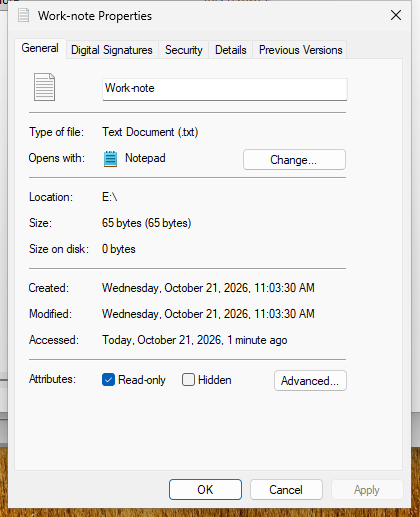
Lesson 3.3

File and system recovery

A useful recovery fixes the damaged item and preserves the work that is still good. Begin by asking what failed: one document, Windows system state, or a whole disk. Then identify an available backup from before the unwanted change.

The VM work ticket uses fictional files and an isolated practice destination. It does not perform cloud imaging, System Restore or a full-disk restore. A disk file stored inside the same VM is a learning destination, not independent disaster protection.

01

Match the recovery method to the problem

File recovery restores a document or folder from an existing saved copy. System Restore rolls back Windows system files and settings using a suitable restore point; it can affect recently installed applications or drivers. It does not bring back a deleted personal essay. A system image captures the selected volumes and can support whole-system recovery when the required boot and system volumes are included.

A recovery method is useful only when its source exists and is accessible. An empty Previous Versions tab does not contain a hidden guaranteed recovery. A restore point created after a problem does not reconstruct an earlier document. Identify the affected item, the required recovery date and the actual source before making changes.

Pause and explain

Would System Restore be the right way to recover yesterday’s paragraph?

Compare your reasoning

No. Look for a personal-file backup or available version source.

Technical references for this section

02

File History needs a destination and saved versions

File History saves versions of protected personal files to a configured drive or network location. In current Windows11, open Control Panel → System and Security → File History. Do not confuse Accounts → Windows backup with this interface. File History covers supported libraries and personal folders; a file placed in an arbitrary C:\Lab folder is not automatically protected. Use the actual local Documents folder for this exercise, or deliberately include a folder in a protected library.

Select the positively identified practice destination before turning File History on. Advanced settings controls how often copies are saved and how long versions are kept. A shorter interval can capture more changes; longer retention uses more storage. Neither setting recreates versions from before protection was configured. Existing policy, an unavailable drive or a failed backup must be reported rather than marked complete.

Save the first file version and complete its backup before editing. Save a genuinely different second version, then complete another backup. Open the available history and check the dates and contents. Seeing an On label is not proof that both versions exist.

Complete Equipment-note.txt File History preview showing C:\Users\lab\Documents\Recovery-Practice\Equipment-note.txt. The saved version is dated October 28, 2026 at 7:57AM, 1 of 1, and contains Original list: 4 laptops and 2 displays. Version navigation and the restore button are visible.
The actual first saved version contains the original quantities before the deliberate edit. Check the saved contents and date; do not restore over current work. Microsoft Windows11. Used with permission from Microsoft. Lossless crop retaining the complete software window; original guest pixels preserved. Open the image for original resolution.

Pause and explain

Why does the first backup come before the deliberate edit?

Compare your reasoning

The original contents need to be captured before the file changes.

Technical references for this section

03

Recover an earlier copy without overwriting useful work

For this exercise, select Equipment-note.txt inside Documents → Recovery-Practice. In File Explorer use … → Properties → Previous Versions, or right-click the selected file and choose Properties. Select the earlier file version, then Open → Open in File History. Verify its original contents in the preview. The version arrows let you compare available saved contents; return to the older original before restoring.

In File History, right-click the green Restore button and choose Restore to…. This is a context-menu command, not a Restore dropdown. In the destination dialog open Documents, create a new empty Recovered-3.3 folder, commit its name and double-click it before choosing Select Folder. The recovered file goes directly inside that folder. Direct restoration to the original location can replace current content; cancel any unexpected replacement prompt.

Open both the recovered file and the current original. Compare their contents, not only their names or dates. Keep the useful current work until the requested recovery has been verified. A PDF screenshot records what the learner observed; it does not automatically prove the recovered file is correct.

Complete Restore to folder chooser. The breadcrumb is Documents, Recovered-3.3; the folder is empty. The Folder field reads Recovered-3.3, with Select Folder and Cancel visible.
The actual restore destination is the new empty Documents → Recovered-3.3 folder. Choose a separate destination to preserve the current original; cancel any unexpected replacement prompt. Microsoft Windows11. Used with permission from Microsoft. Lossless crop retaining the complete software dialog; original guest pixels preserved. Open the image for original resolution.

Pause and explain

Does restoring a file always overwrite the current one?

Compare your reasoning

No. A separate restore destination can preserve both copies.

Technical references for this section

04

System Restore protects system state, not document history

System Restore uses available restore points to reverse certain Windows system changes. It can help after an unsuitable driver or application change. Review the selected date and Scan for affected programs when available. A restore can remove later applications or drivers even though personal documents are outside its recovery scope.

Open the guest’s Create a restore point search result to inspect System Protection, then inspect System Restore only as directed. Protection Off, a disabled button or no restore points is a valid observation. Do not enable protection, create a restore point, start a restore or change settings during this read-only exploration. Cancel out when finished.

System Restore is different from Reset this PC, a full-disk image restore and any newer point-in-time recovery feature shown on a particular Windows build. Read the exact tool name and its data-loss warning. Do not assume every screen with the word restore has the same scope.

Complete System Properties dialog on System Protection. The listed Local Disk C: and RECOVERY33 R: both show Protection Off. System Restore and Create are disabled; Configure, OK and Cancel are visible.
System protection is Off in this actual documentation guest. Observe and report the state; do not enable protection or create a restore point for this exploration. Microsoft Windows11. Used with permission from Microsoft. Lossless crop retaining the complete software dialog from the actual guest display; original pixels preserved. Open the image for original resolution.

Pause and explain

Is no restore points available the same as a failed student action?

Compare your reasoning

No. It honestly describes the inspected VM. The learner should record that state rather than create an unassigned restore point.

Technical references for this section

05

A disk image needs complete scope and a usable destination

A full-system image needs the required Windows boot/system volumes as well as the intended applications, settings and personal files. Selecting only a large C: volume is not a universal guarantee that every required partition was captured. Use a supported imaging tool, verify its selected volumes and follow that product’s recovery procedure.

Cloud imaging adds dependencies: approved software and license, a supported cloud destination, authorized account access, enough capacity, upload bandwidth, encryption and key recovery. During recovery, the rescue environment must be able to reach and authenticate to that destination, or an approved local image copy must be available. A filename visible in cloud storage proves neither image integrity nor successful boot recovery.

Windows Backup can synchronize selected personal folders with OneDrive and retain supported settings and app information. It is not a general full-disk cloud-imaging tool. Do not require students to create a personal Microsoft account for this lesson.

The Create a system image link under Backup and Restore (Windows7) is a legacy exploration interface. Microsoft deprecated that imaging solution; inspect its destination choices only, then cancel. This is not a recommendation to deploy the legacy tool as a modern business backup service, and it is not a completed backup.

Complete legacy Create a system image destination dialog. It lists a hard disk, DVDs or a network location. The displayed RECOVERY33 (R:) has 1.95GB free, and Windows warns there might not be enough free space. Next and Cancel are visible.
Explore the legacy destination choices, then Cancel. The small practice volume is for file versioning, not a whole-system image; do not delete files or start a backup to match this screen. Microsoft Windows11. Used with permission from Microsoft. Lossless crop retaining the complete software dialog from the actual guest display; original pixels preserved. Open the image for original resolution.

Pause and explain

Why might a cloud image be unusable from rescue media?

Compare your reasoning

The environment may lack networking, storage drivers, supported cloud access or the required decryption/account credentials.

Technical references for this section

06

Verify recovery and protect against a shared failure

Before full-disk recovery, verify the source image, required keys, recovery-media compatibility and exact destination disk. Preserve newer needed data separately. Full-disk restoration can overwrite the destination’s current operating system and files. Perform a test only on an explicitly disposable recovery target, never on a classroom host or the working guest used for other lessons.

After an isolated full-system restore, verify startup, required applications, representative files, permissions and settings. Check the actual state and record errors. This lesson explains that sequence; the account-free work ticket performs file recovery and tool exploration, not a destructive system recovery.

A different drive letter is not necessarily a different physical disk. A VHD stored inside the same VM can demonstrate version recovery but is lost along with the VM or underlying host disk. Real protection needs an appropriate independent destination and a tested recovery plan. A VM snapshot is a useful lab recovery aid, not automatically an independent backup.

Pause and explain

Is Backup completed the last verification step?

Compare your reasoning

No. Test recovery in an isolated target and inspect the recovered contents or system.

Technical references for this section

The 8 lesson terms

The same terms and definitions used in the site’s study tools. Supporting labels in the reading are not extra required vocabulary.

File History

Windows file-version backup that saves protected personal files to a configured drive or network location. A previous version must have been saved before it can be recovered.

Factual sources
Backup

A recoverable copy of data kept for recovery. Its scope, age, destination and tested restoration determine what it can protect.

Factual sources
Retention

How long saved backup versions are kept. Longer retention helps recover older work but requires more storage.

Factual sources
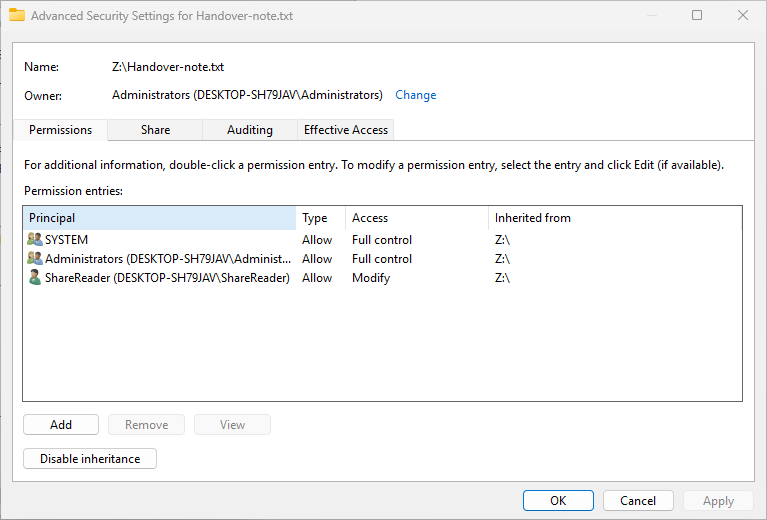
Previous version

An earlier saved state of a file or folder available from a configured recovery source. The tab alone does not guarantee that a version exists.

Factual sources
System image

A backup of the selected disk or system volumes, potentially including Windows, applications, settings and files. Recoverability depends on the included partitions and compatible recovery tools.

Factual sources
System Restore

Windows recovery that rolls system files and settings back to an available restore point. It does not recover a deleted personal document.

Factual sources
Restore point

Saved Windows system-state information used by System Restore. It is different from a full-disk image or a personal-file backup.

Factual sources
Recovery media

Bootable media containing a recovery environment. It must support the chosen backup format and the destination hardware.

Factual sources

About this reading

Original explanations and fictional examples, using the approved lesson scope. Technical terms retain their standard names. Factual sources are linked beside each section and term.

The AD chapter introduces Windows Server AD DS and local/domain policy concepts, not a current security baseline or a complete administration guide. Read the source’s product/version context. Practice is ungraded; it does not certify independent hands-on competence. No answers or learner profiles are saved on this page.

Module 1 vocabulary study tools